Learn
MT4 and MT5 on Mac: Install MetaTrader, EAs and Indicators
At a glance
Yes, MetaTrader 4 (MT4) and MetaTrader 5 (MT5) can run on a Mac, including Apple Silicon, through MetaQuotes' Wine-based desktop installers. Install the matching platform, open its own data folder, then copy EAs into Experts or custom indicators into Indicators. In our check on 21 September 2026 (MT4 build 1476, MT5 build 6182), the official MT4 package stored its files under Program Files (x86), not the Program Files folder named in the official help page, and Finder was the working route to the MT5 folder. Separate MT4 and MT5 screenshot walkthroughs show each step; compatibility with a particular third-party EA still needs testing.
On this page
Getting MetaTrader onto a MacBook is one task. Getting an EA or custom indicator into the same terminal's data folder is another. This guide walks through both, with separate MT4 and MT5 paths and a Finder route for copying files.
Start where you are: follow the MT4 / MT5 screenshots, find an installed terminal's data folder, or diagnose a missing EA or indicator.
Can MT4 and MT5 run on a Mac?
Yes. MetaTrader 4 (MT4) and MetaTrader 5 (MT5) both run on a Mac. MetaQuotes provides Mac installers for both desktop platforms: the installer sets up Wine, a compatibility layer, and installs the platform inside it, so the terminal's files sit in a Wine drive_c folder on your Mac (see Step 2). Its documentation, rechecked on October 1, 2026, lists macOS Big Sur 11 or later for MT4 and Catalina 10.15.7 or later for MT5, with Apple Silicon support. This installation route does not require a separate Windows virtual machine. See the official MT4 requirements and MT5 requirements.
That answers whether the platform can run. An EA's Windows DLLs, licensing components or other dependencies still need their own compatibility check. Below is the exact scope of our practical test.
Practically checked on 21 September 2026: on an Apple Silicon Mac running macOS 27.0, we copied our own EA and indicator into both platforms using Finder, attached them manually through Navigator, and confirmed their visible output and running timers. The screenshots show MT4 build 1476 and MT5 build 6182, in English.
We used fresh, separate Wine environments initialized from the official signed packages, preserving the Mac’s existing trading setup. The graphical package installer is shown at its welcome screen; we did not complete its system-wide installation over that existing setup. These are account-free installation checks with simple programs, not broker-connected trading or a compatibility test of every third-party EA. AI assisted with research, drafting, local checks and the cover illustration; see our editorial disclosure.
Follow the screenshots
Choose MT4 or MT5, then use Next or Jump to a step. Click a screenshot to enlarge it. Each version has its own images and menu labels. The Finder menu image is shared. Our example filenames start with RoboXpert_Setup_; use the files supplied by your own software provider.
Start with the official MT4 Mac download instructions or MT5 Mac download instructions. The detailed folder addresses and written steps follow the slideshow.
Captured 21 September 2026 · Apple Silicon · macOS 27.0 · MT4 build 1476 · English UI
MT4 · Step 1 of 12
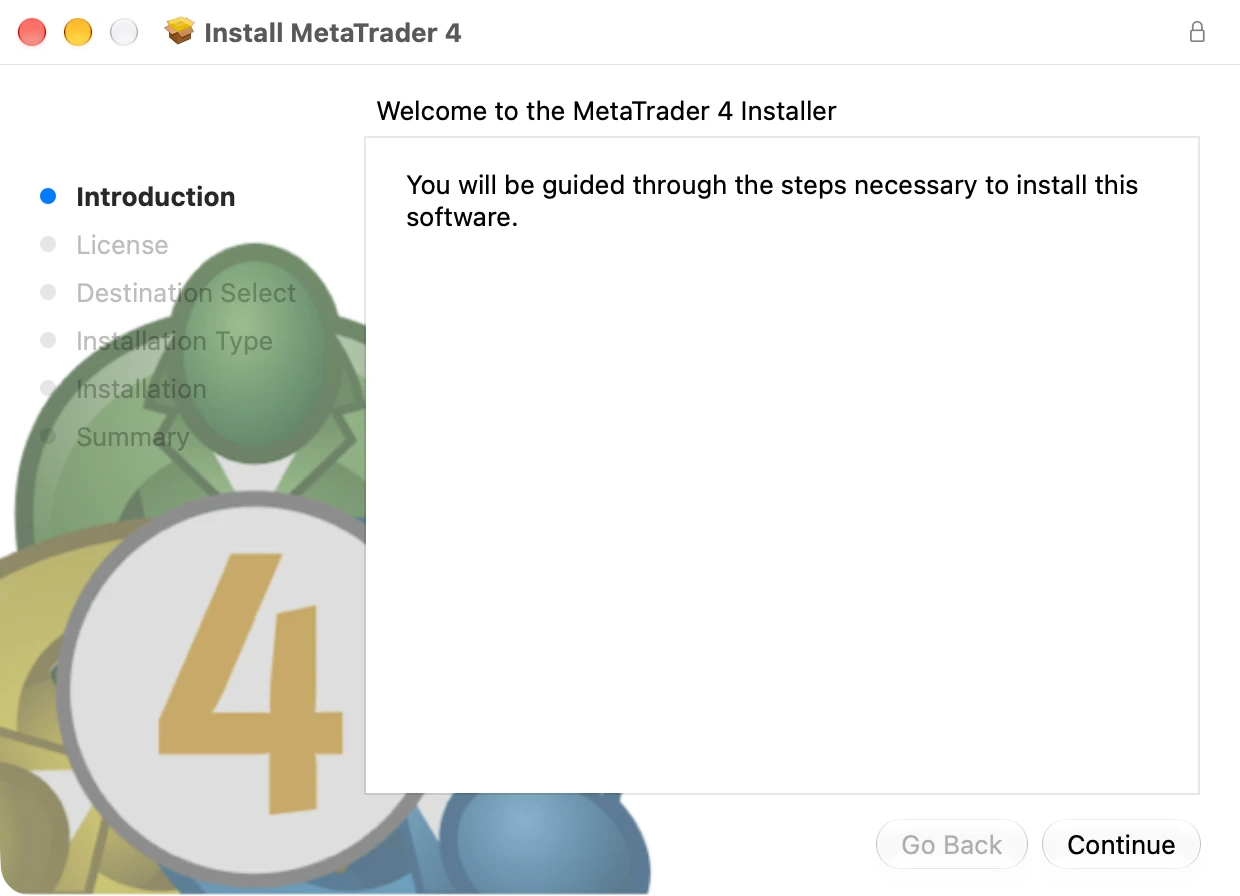
Open the official Mac installer
Download MT4 from the official link below. In Finder → Downloads, double-click the ZIP to unpack it, then open the PKG. Click Continue and follow the prompts. macOS may ask for administrator authentication.
Check before continuing: The installer is named MetaTrader 4. This image shows its welcome screen; the installation prompts can vary.
Read all steps and open screenshots individually
This list also works without JavaScript. Choose a screenshot link to view it at full size.
MT4
Open the official Mac installer
Download MT4 from the official link below. In Finder → Downloads, double-click the ZIP to unpack it, then open the PKG. Click Continue and follow the prompts. macOS may ask for administrator authentication.
Check: The installer is named MetaTrader 4. This image shows its welcome screen; the installation prompts can vary.
MT4 screenshot: Open the official Mac installerUse the English menus
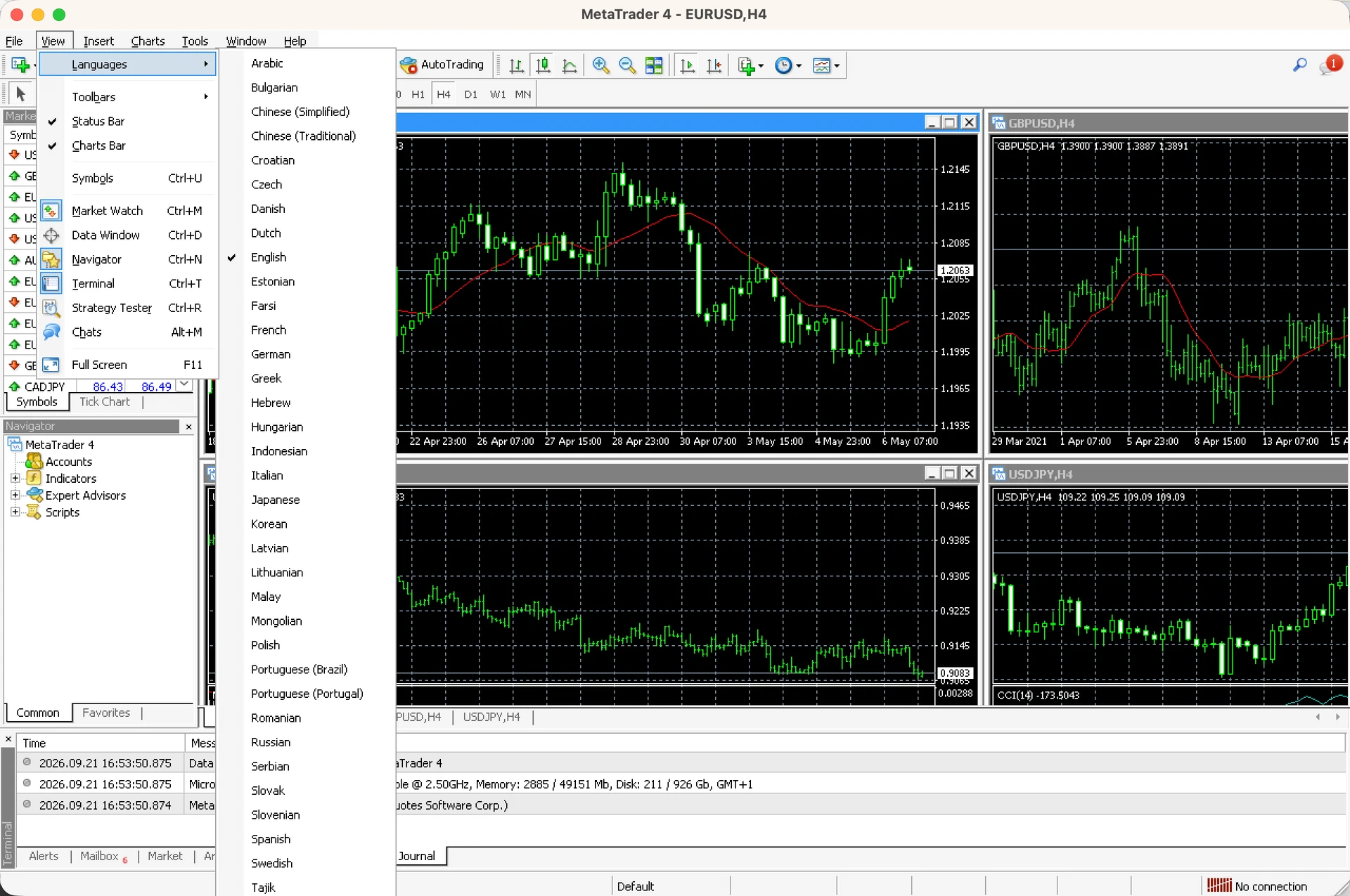
Open MT4. Choose View → Languages → English. Restart the terminal if it asks you to. The rest of your Mac can keep its current language.
Check: English is selected. For a normal setup, connect to your broker’s demo account using its instructions. Our screenshots use an account-free test environment.
MT4 screenshot: Use the English menusStart with the correct terminal
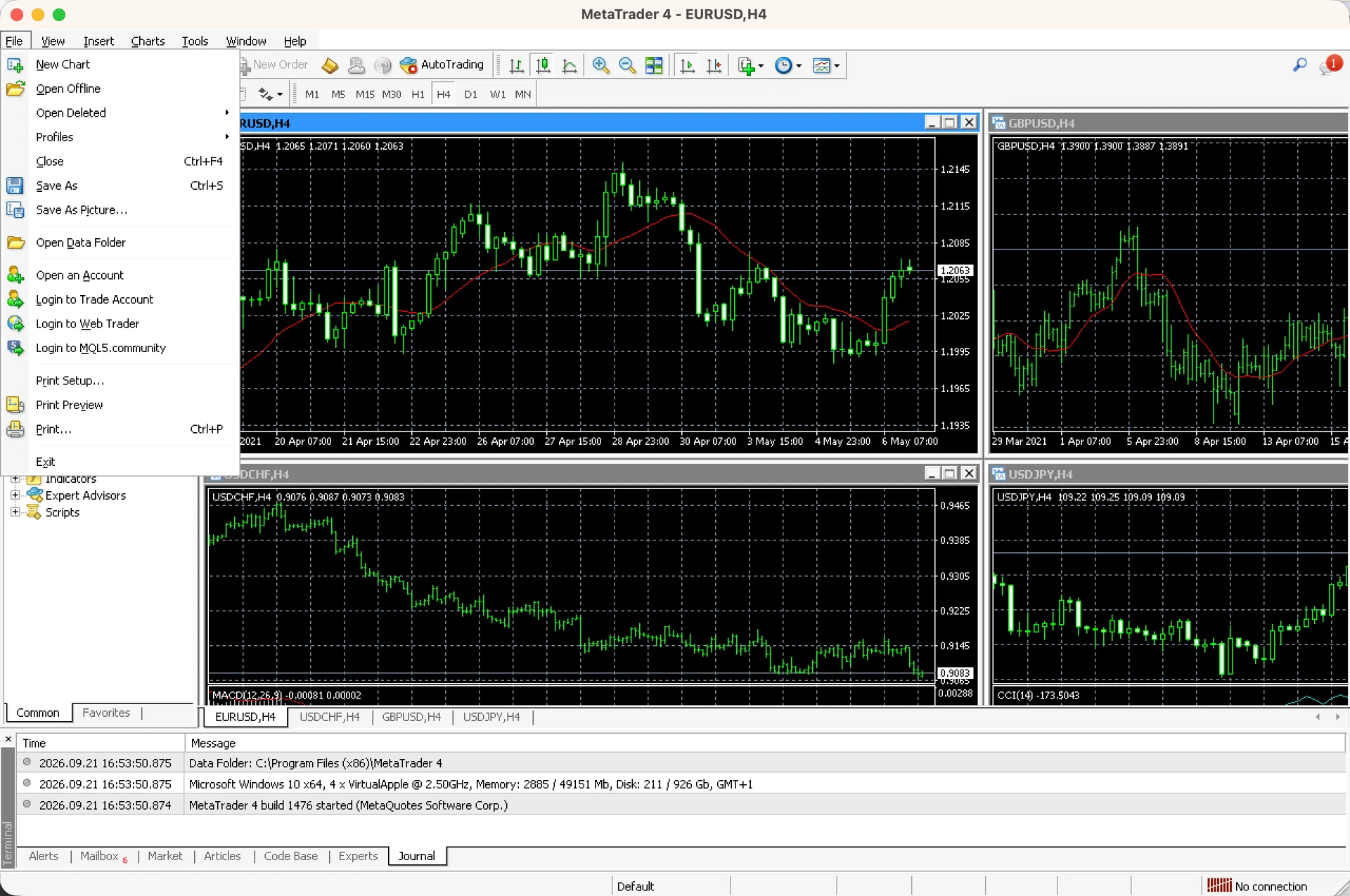
In the MetaTrader window you intend to use, click File → Open Data Folder. This identifies that terminal’s files. If the Wine window does not open or is difficult to use, use Finder as shown next.
Check: You are working with MT4, not the other version or another broker’s installation.
MT4 screenshot: Start with the correct terminalOpen the folder in Finder
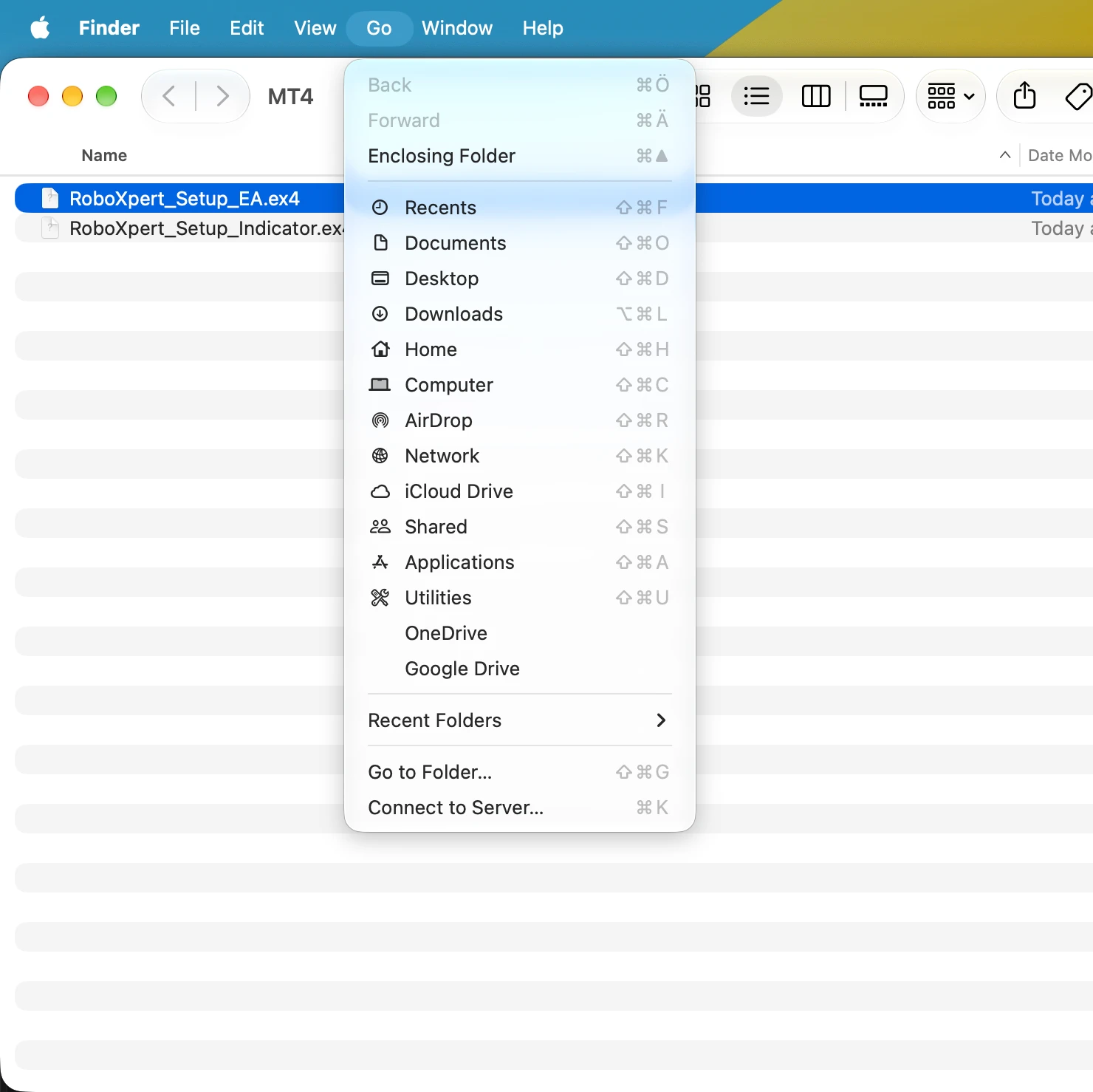
Click Finder’s blue face in the Dock. At the top of the screen, choose Go → Go to Folder… (Shift–Command–G). Use the link below to find and copy the MT4 folder address. Paste it into Finder with Command–V, then press Return. This is a folder address, not a Terminal command.
Find and copy the MT4 folder path →
Check: Finder opens the platform folder. If it cannot find it, use the path alternatives below; do not create an empty replacement folder.
MT4 screenshot: Open the folder in FinderFind Experts and Indicators inside MQL4
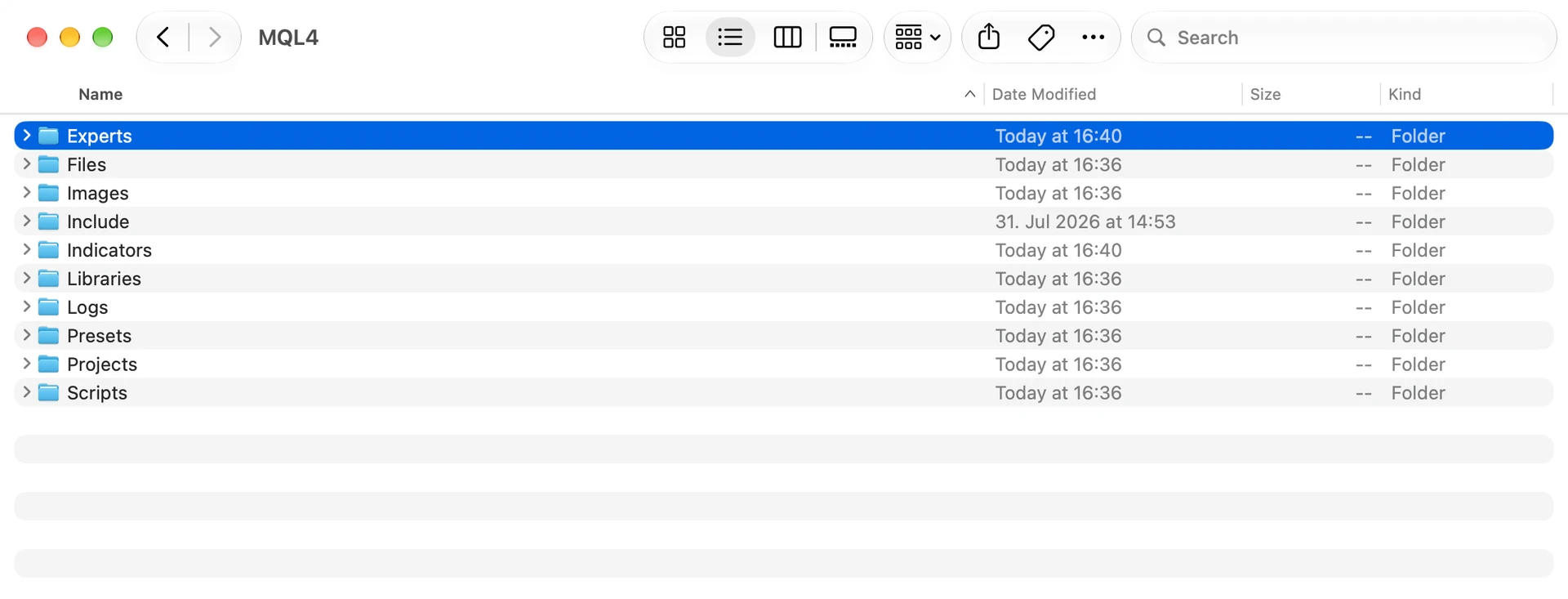
Double-click MQL4. Inside, use Experts for an EA or Indicators for a custom indicator. These are different folders, even when the files have the same extension.
Check: The window title says MQL4, and you can see the Experts and Indicators folders.
MT4 screenshot: Find Experts and Indicators inside MQL4Select and copy your program
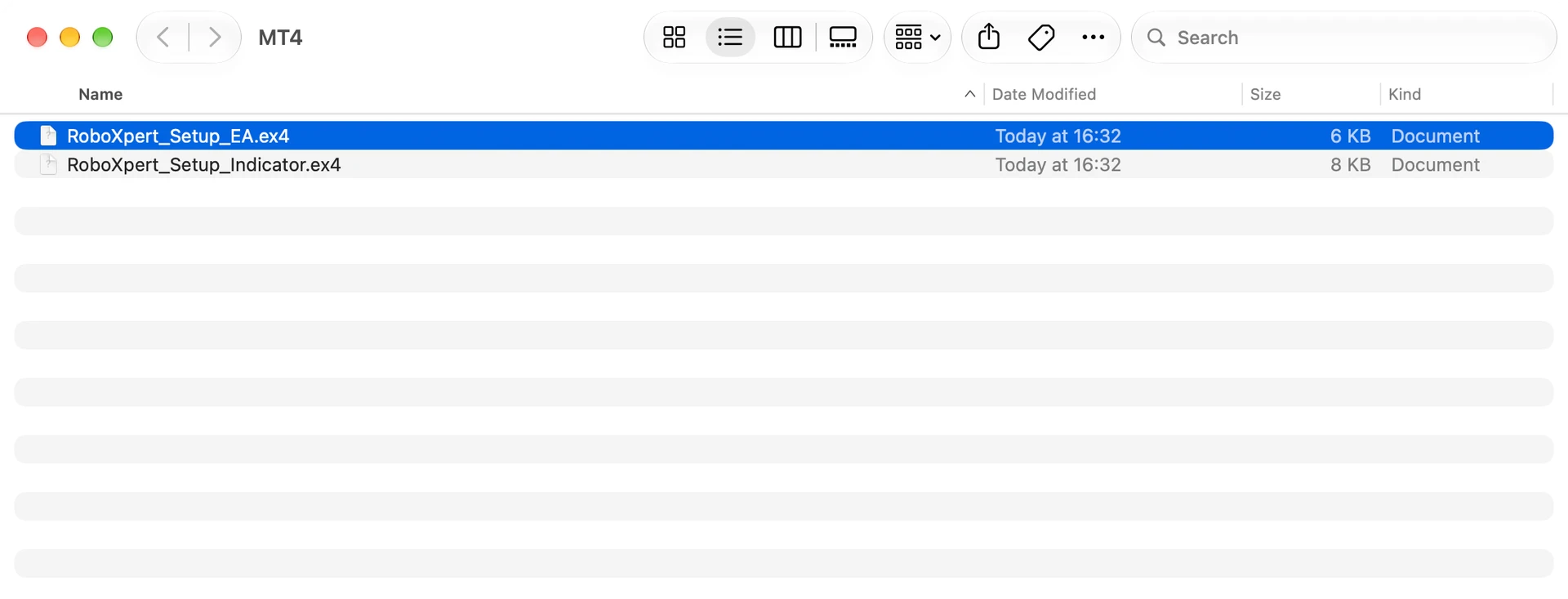
Open File → New Finder Window, then find your downloaded program. Unpack its ZIP if needed. Click the correct .ex4 file once and press Command–C. The screenshot selects our example EA; select your indicator instead if that is what you are installing.
Check: Your provider confirms it is a MT4 program and tells you whether it is an EA or indicator. Do not double-click the executable.
MT4 screenshot: Select and copy your programFor an EA: paste into Experts
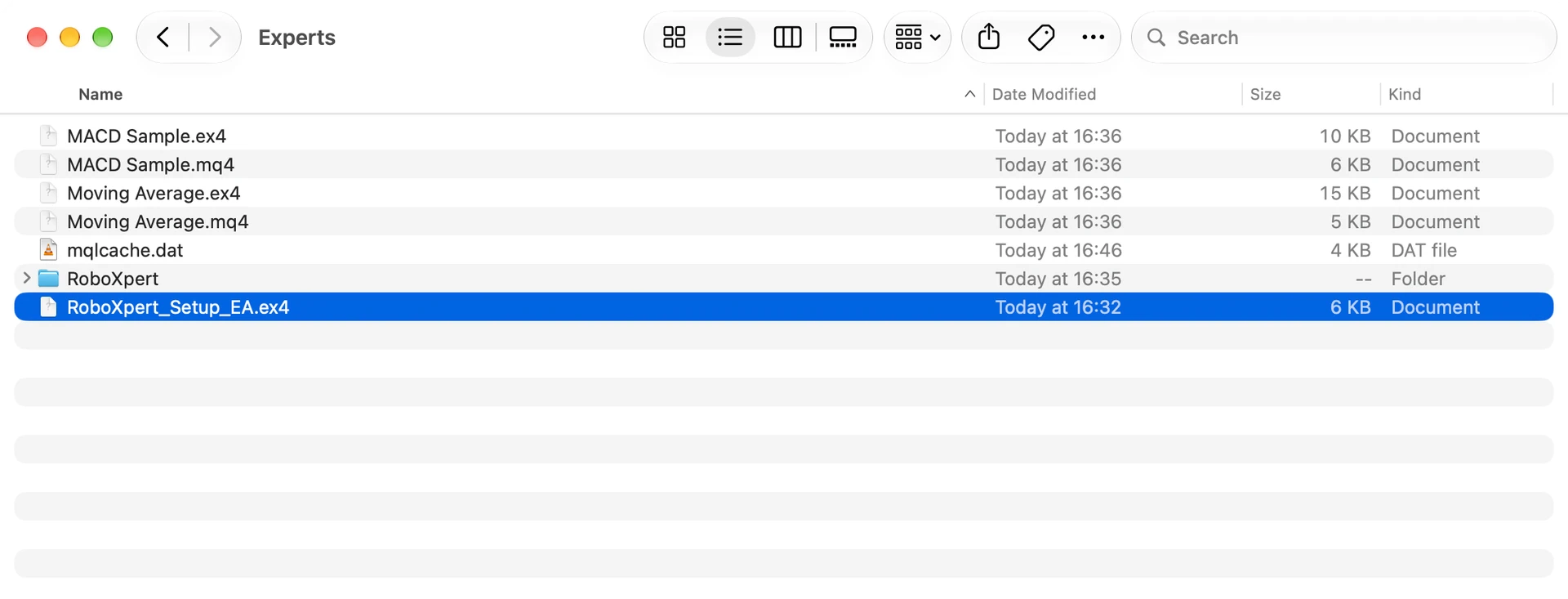
Click the destination Finder window, open MQL4 → Experts, then press Command–V. Your file should appear as shown. If you only have an indicator, skip to “For an indicator: paste into Indicators”.
Check: The EA’s .ex4 file is inside Experts. If Finder asks to replace a file, check the existing version before proceeding.
MT4 screenshot: For an EA: paste into ExpertsRefresh Navigator
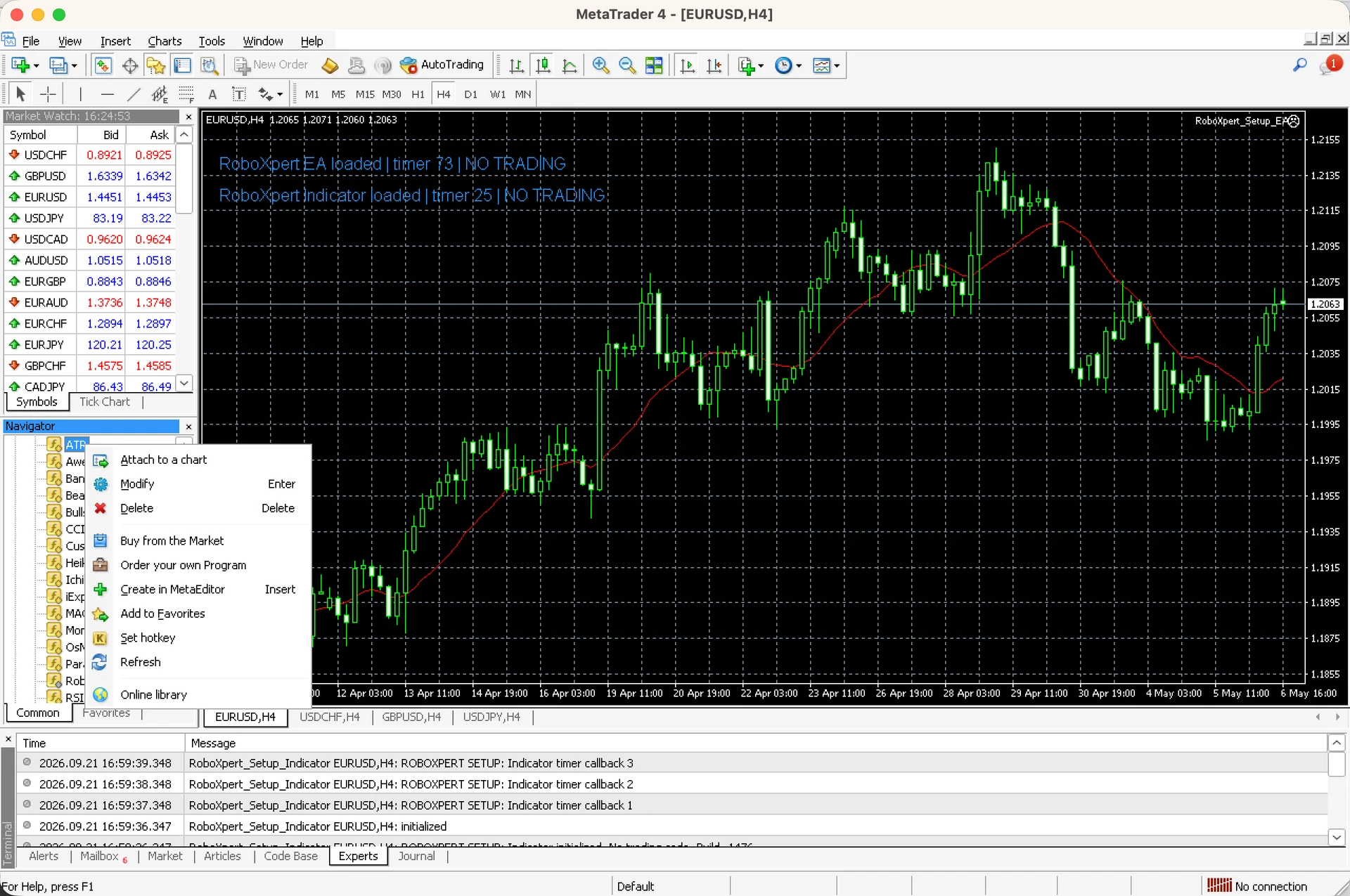
Return to MetaTrader and choose View → Navigator. Expand Expert Advisors or Indicators using its small arrow or plus sign. Right-click in that list and choose Refresh. On a trackpad, use your configured secondary click, commonly a two-finger click.
Check: Your program’s name appears in the correct list. The example screenshots also show programs already attached to a chart.
MT4 screenshot: Refresh NavigatorAttach the EA and review its settings
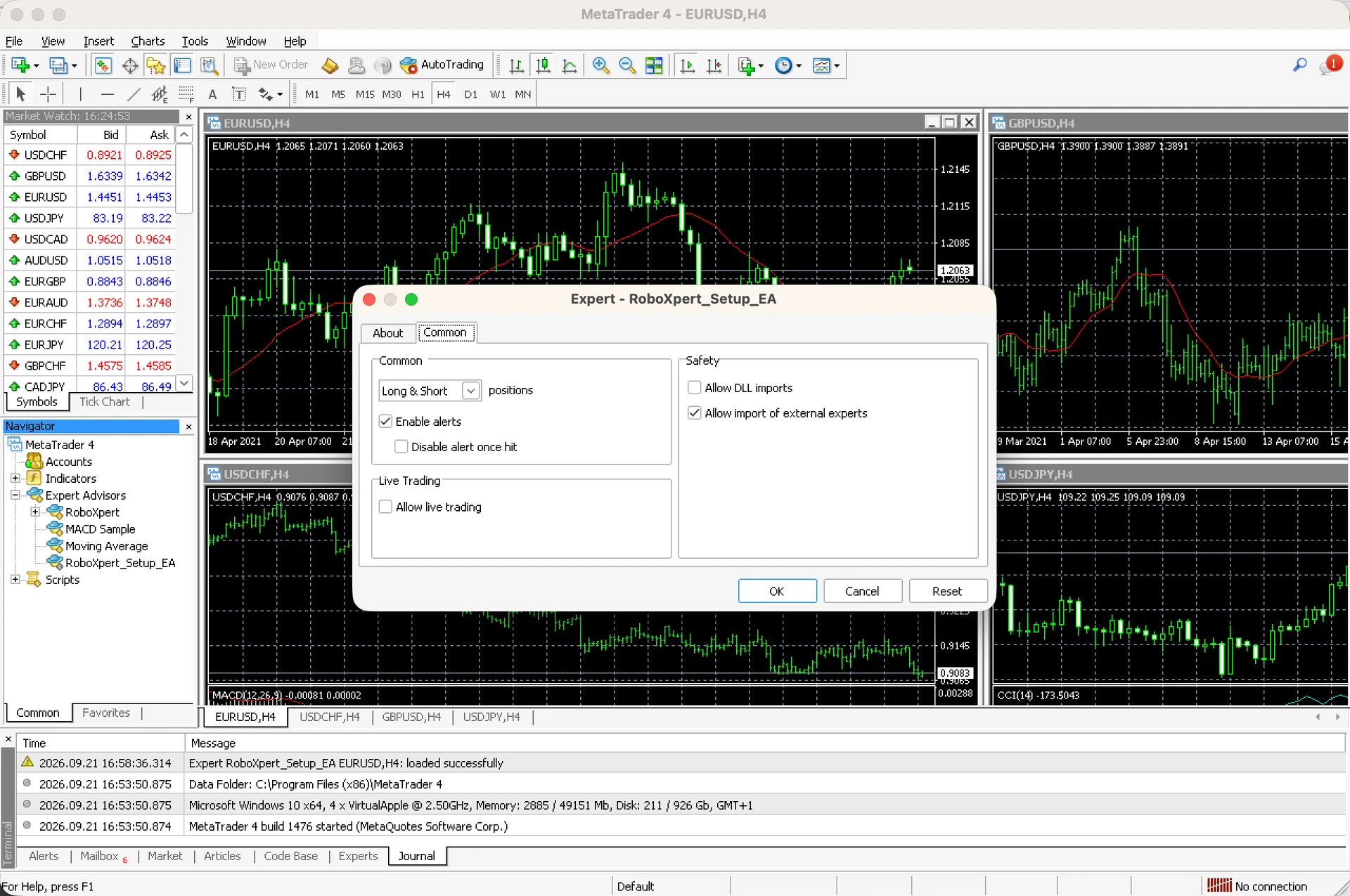
Click your intended chart, then double-click the EA in Navigator. Review its settings and any Inputs tab. In MT4, the individual permission is called Allow live trading. Click OK to attach it.
Check: Our example cannot place orders, so trading permission stays off. Your trading EA also needs the terminal-wide AutoTrading control enabled when you are ready for its demo test.
MT4 screenshot: Attach the EA and review its settingsFor an indicator: paste into Indicators
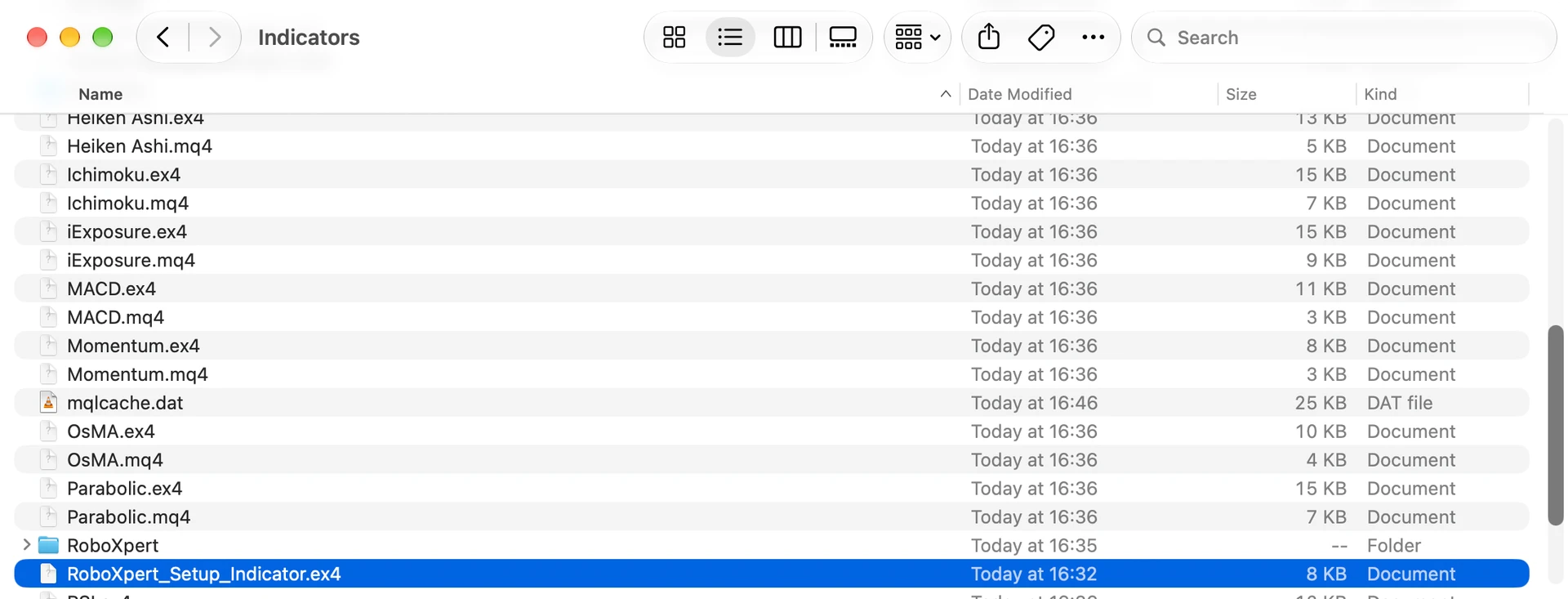
In the source Finder window, select your indicator’s .ex4 file and press Command–C. In the destination window, open MQL4 → Indicators and press Command–V. Return to MetaTrader and refresh Navigator again.
Check: The indicator is in Indicators, and it appears under Indicators in MT4. An indicator does not belong in Experts.
MT4 screenshot: For an indicator: paste into IndicatorsAttach the indicator to your chart
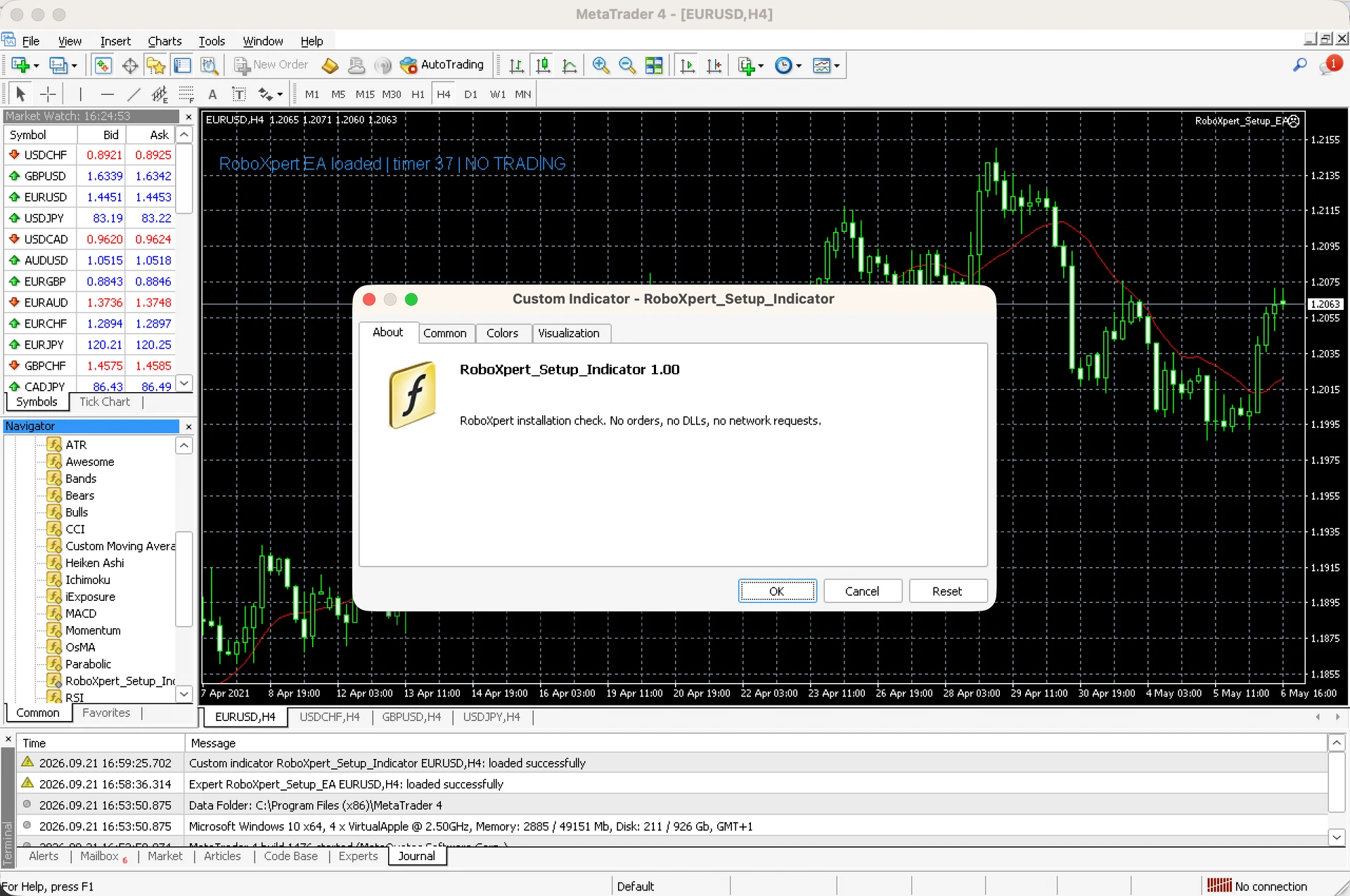
Click the intended chart, then double-click your indicator under Navigator → Indicators. Review its settings and click OK. A custom indicator does not need the EA trading switch just to display its output.
Check: The dialog names the indicator you selected. Its appearance and available tabs depend on the program.
MT4 screenshot: Attach the indicator to your chartConfirm that the program actually runs
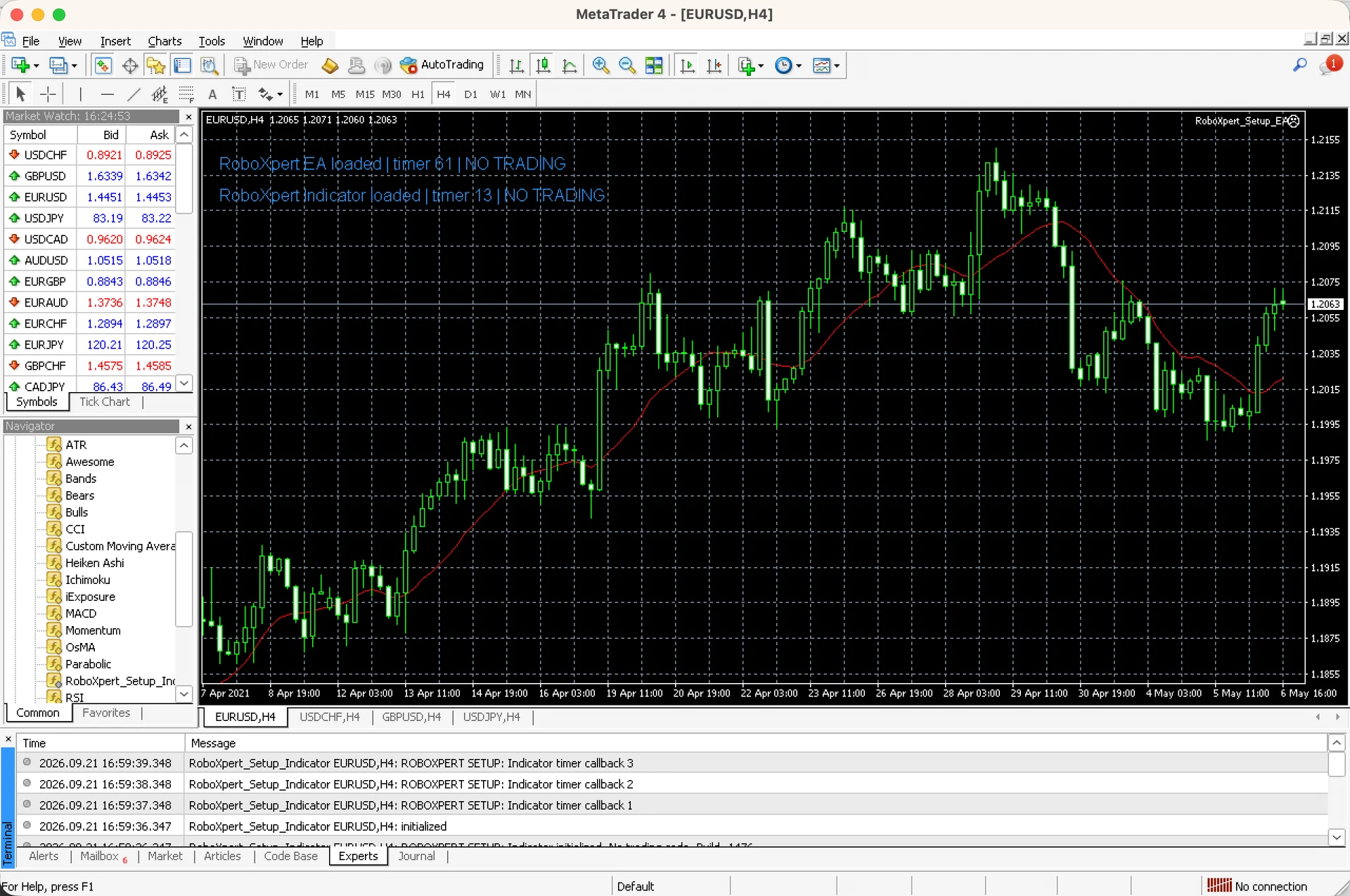
Open View → Terminal, then click Experts and Journal. Read the startup messages and check the chart for the output described by your provider. In our test, both programs display a label and a changing timer.
Check: Both example programs initialized and ran. The displayed history is bundled sample data, with no connected broker account. This proves this installation check, not trading readiness or profitability.
MT4 screenshot: Confirm that the program actually runs
MT5
Open the official Mac installer
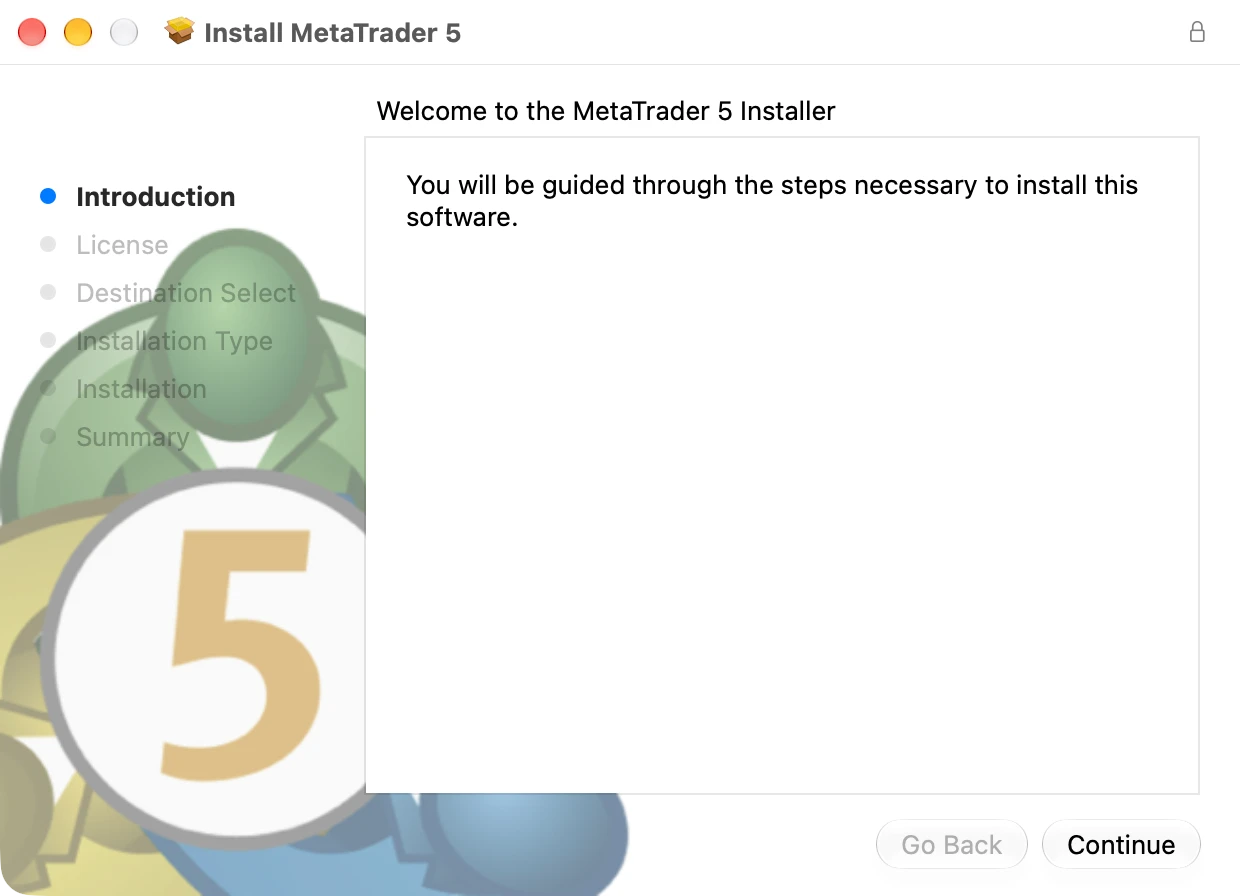
Download MT5 from the official link below. In Finder → Downloads, double-click the ZIP to unpack it, then open the PKG. Click Continue and follow the prompts. macOS may ask for administrator authentication.
Check: The installer is named MetaTrader 5. This image shows its welcome screen; the installation prompts can vary.
MT5 screenshot: Open the official Mac installerUse the English menus
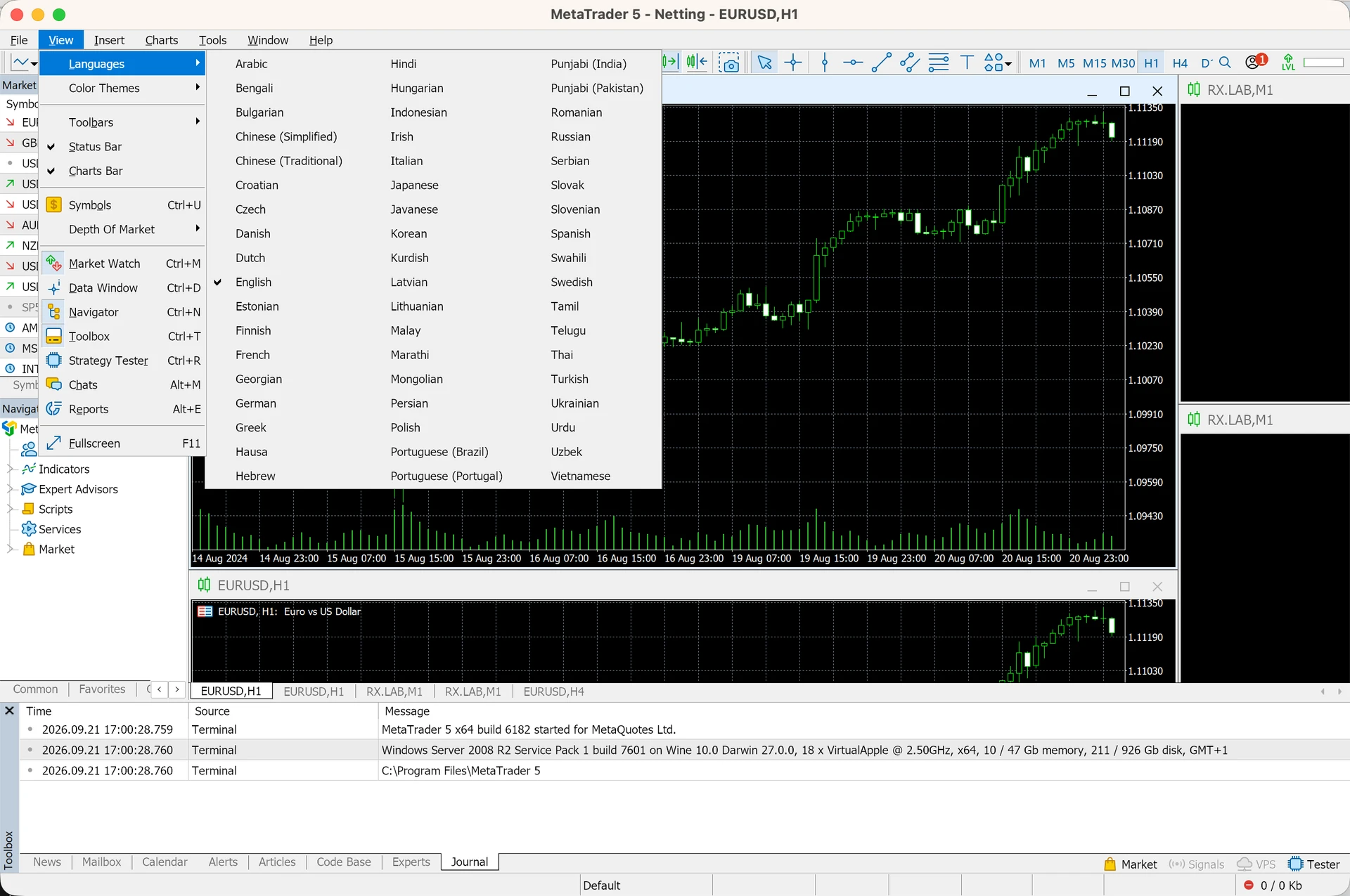
Open MT5. Choose View → Languages → English. Restart the terminal if it asks you to. The rest of your Mac can keep its current language.
Check: English is selected. For a normal setup, connect to your broker’s demo account using its instructions. Our screenshots use an account-free test environment.
MT5 screenshot: Use the English menusStart with the correct terminal
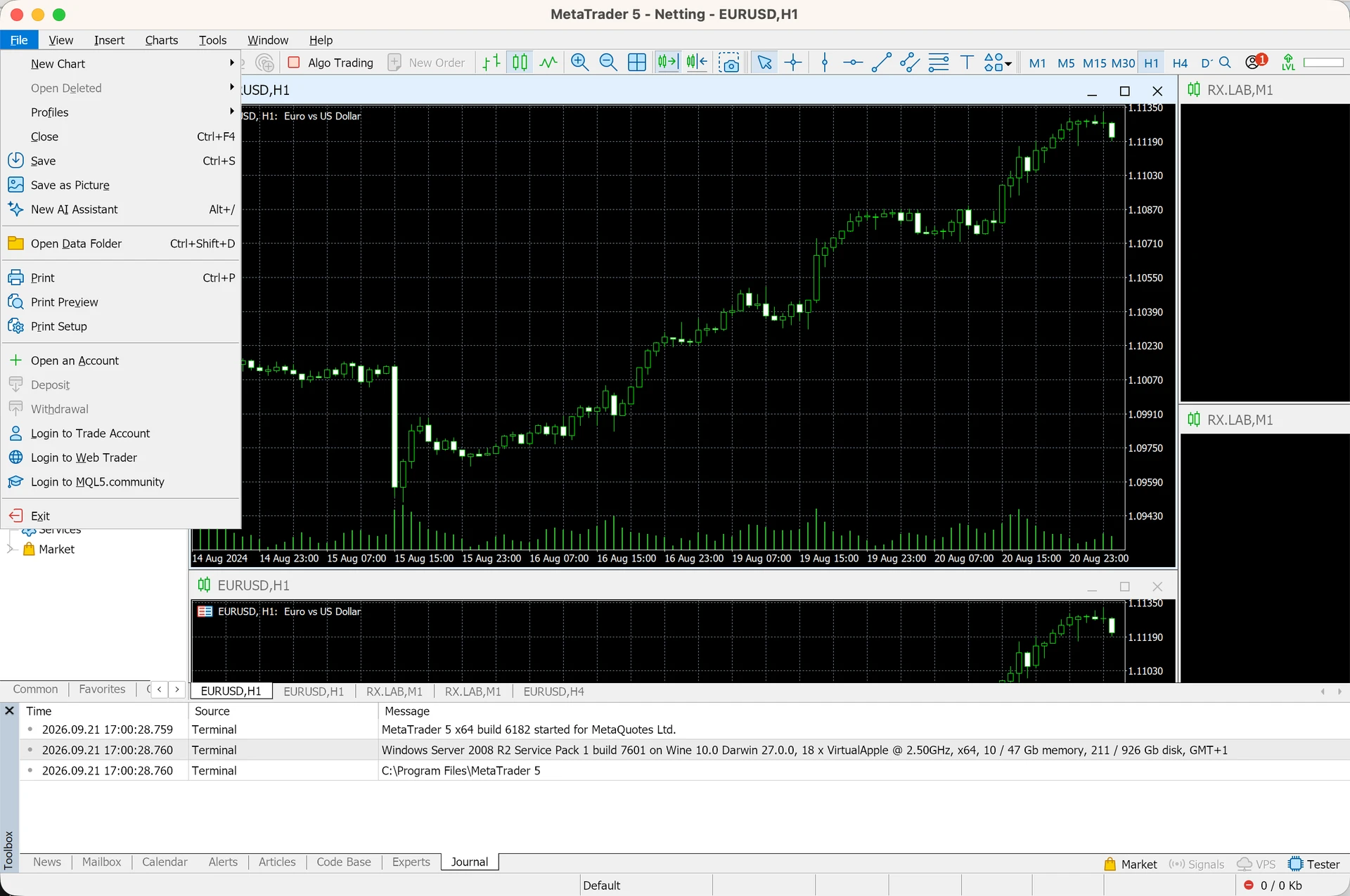
In the MetaTrader window you intend to use, click File → Open Data Folder. This identifies that terminal’s files. If the Wine window does not open or is difficult to use, use Finder as shown next.
Check: You are working with MT5, not the other version or another broker’s installation.
MT5 screenshot: Start with the correct terminalOpen the folder in Finder
Click Finder’s blue face in the Dock. At the top of the screen, choose Go → Go to Folder… (Shift–Command–G). Use the link below to find and copy the MT5 folder address. Paste it into Finder with Command–V, then press Return. This is a folder address, not a Terminal command.
Find and copy the MT5 folder path →
Check: Finder opens the platform folder. If it cannot find it, use the path alternatives below; do not create an empty replacement folder.
MT5 screenshot: Open the folder in FinderFind Experts and Indicators inside MQL5
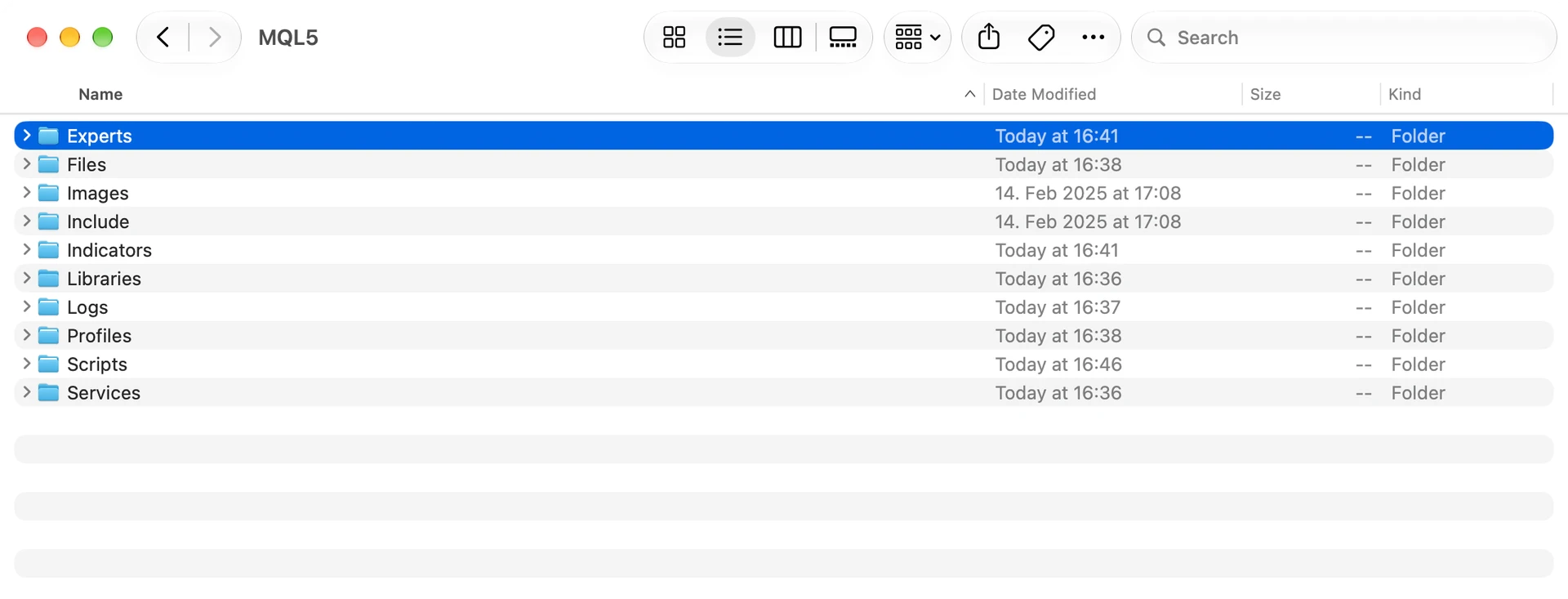
Double-click MQL5. Inside, use Experts for an EA or Indicators for a custom indicator. These are different folders, even when the files have the same extension.
Check: The window title says MQL5, and you can see the Experts and Indicators folders.
MT5 screenshot: Find Experts and Indicators inside MQL5Select and copy your program
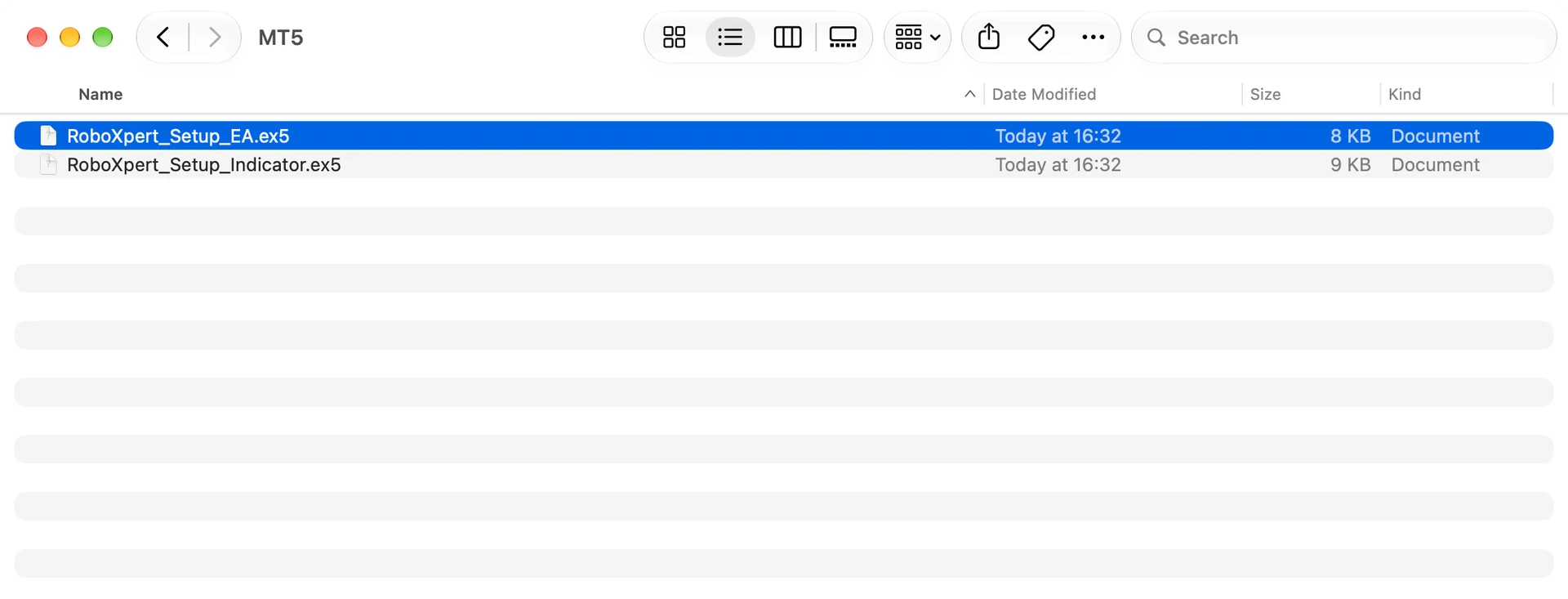
Open File → New Finder Window, then find your downloaded program. Unpack its ZIP if needed. Click the correct .ex5 file once and press Command–C. The screenshot selects our example EA; select your indicator instead if that is what you are installing.
Check: Your provider confirms it is a MT5 program and tells you whether it is an EA or indicator. Do not double-click the executable.
MT5 screenshot: Select and copy your programFor an EA: paste into Experts
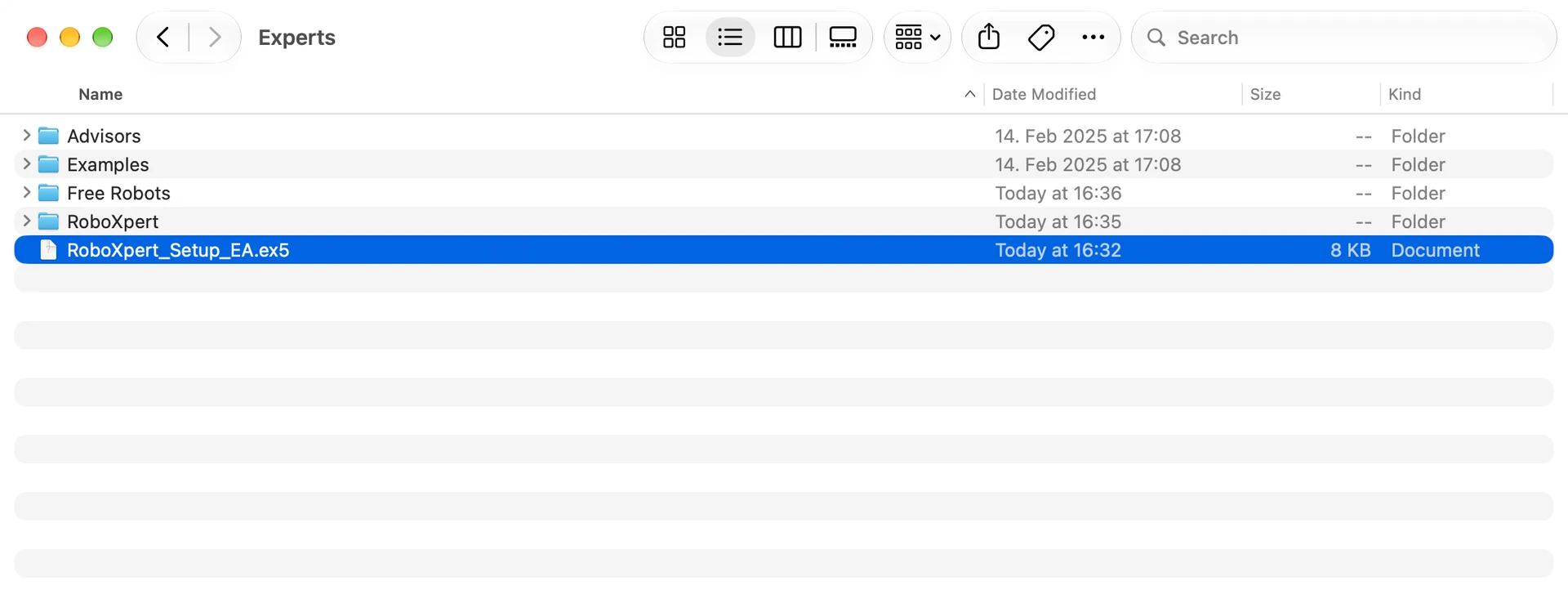
Click the destination Finder window, open MQL5 → Experts, then press Command–V. Your file should appear as shown. If you only have an indicator, skip to “For an indicator: paste into Indicators”.
Check: The EA’s .ex5 file is inside Experts. If Finder asks to replace a file, check the existing version before proceeding.
MT5 screenshot: For an EA: paste into ExpertsRefresh Navigator
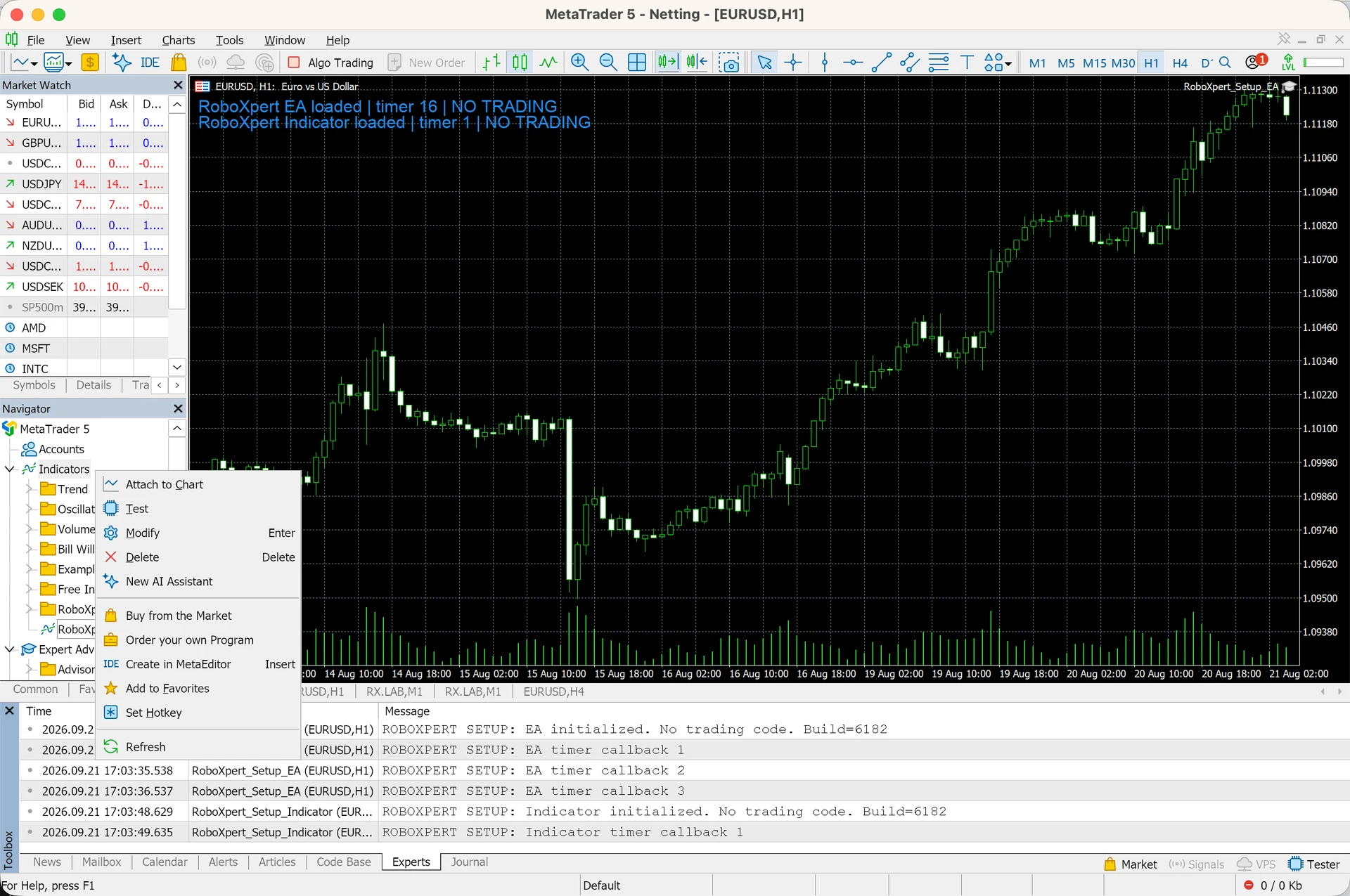
Return to MetaTrader and choose View → Navigator. Expand Expert Advisors or Indicators using its small arrow or plus sign. Right-click in that list and choose Refresh. On a trackpad, use your configured secondary click, commonly a two-finger click.
Check: Your program’s name appears in the correct list. The example screenshots also show programs already attached to a chart.
MT5 screenshot: Refresh NavigatorAttach the EA and review its settings
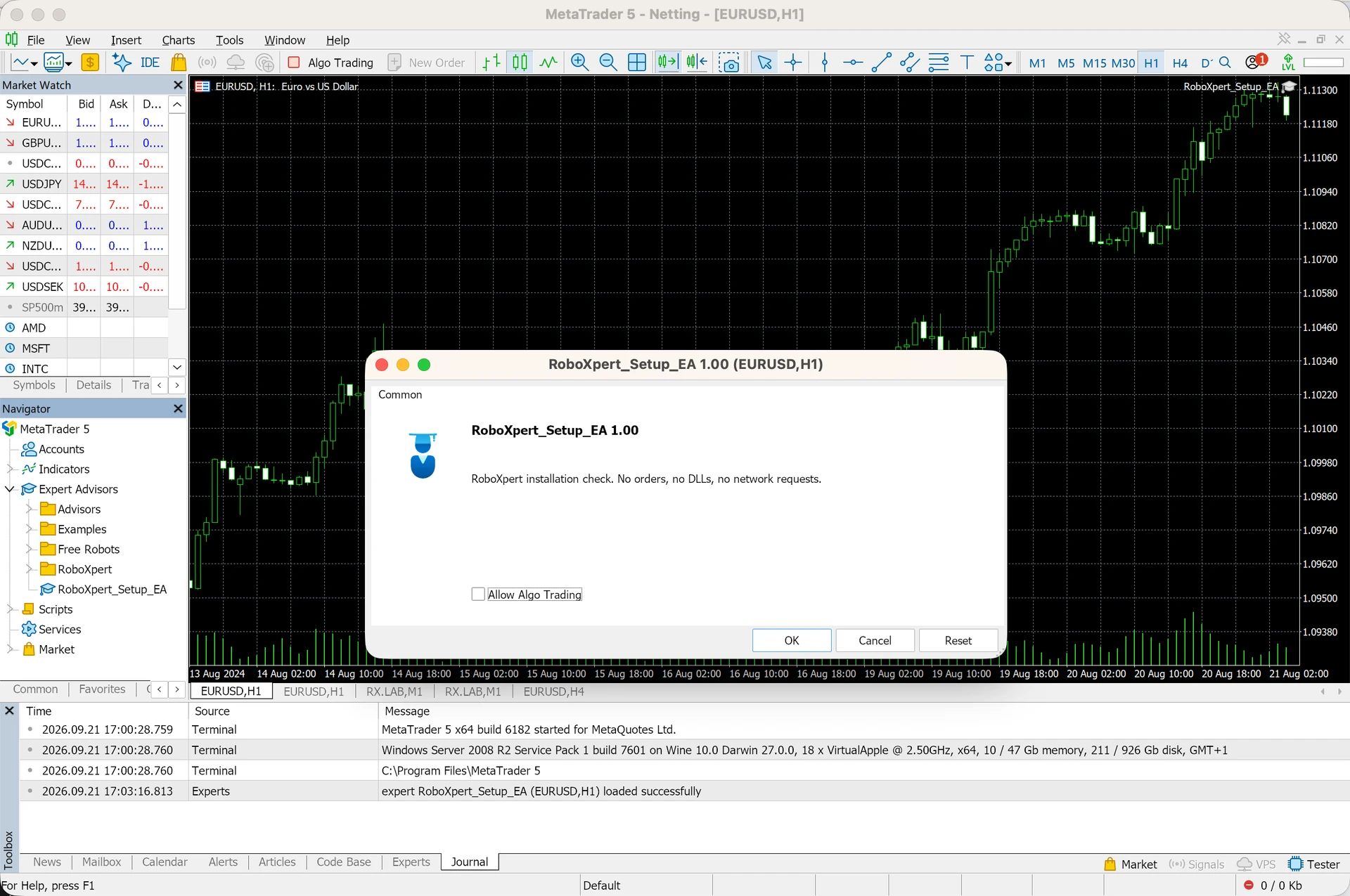
Click your intended chart, then double-click the EA in Navigator. Review its settings and any Inputs tab. In MT5, the individual permission is called Allow Algo Trading. Click OK to attach it.
Check: Our example cannot place orders, so trading permission stays off. Your trading EA also needs the terminal-wide Algo Trading control enabled when you are ready for its demo test.
MT5 screenshot: Attach the EA and review its settingsFor an indicator: paste into Indicators
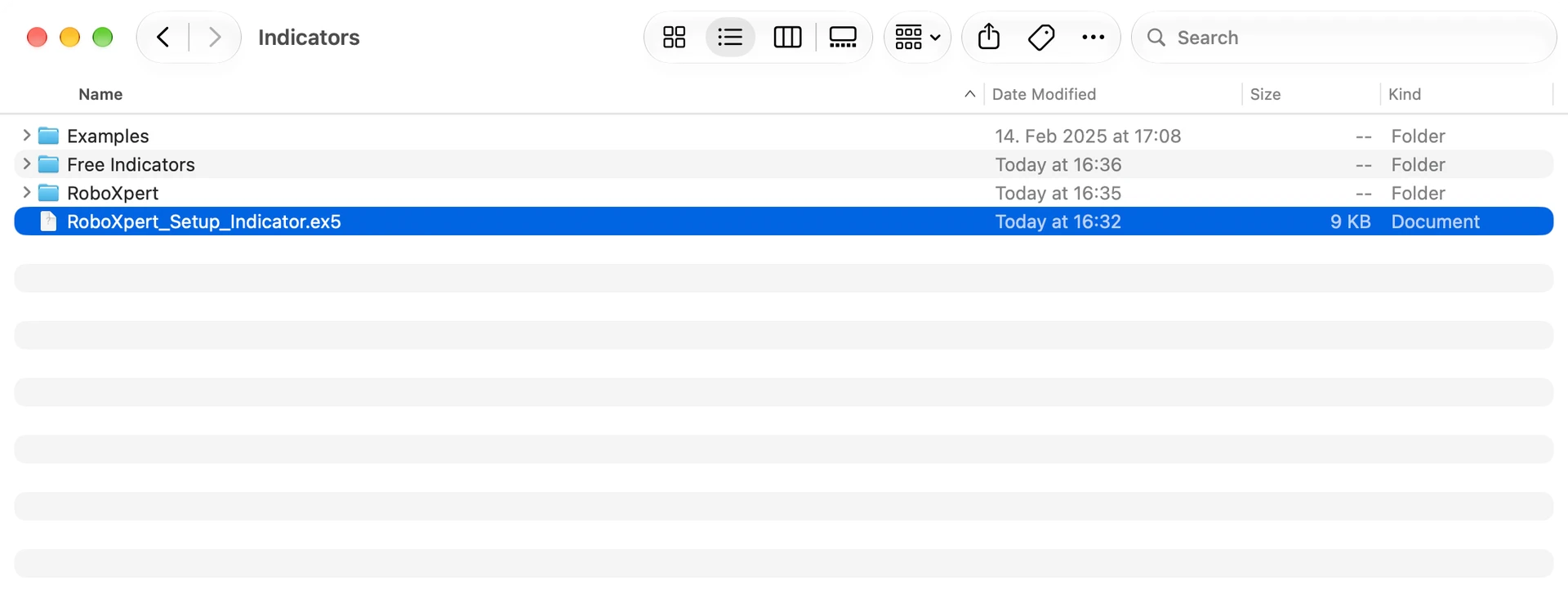
In the source Finder window, select your indicator’s .ex5 file and press Command–C. In the destination window, open MQL5 → Indicators and press Command–V. Return to MetaTrader and refresh Navigator again.
Check: The indicator is in Indicators, and it appears under Indicators in MT5. An indicator does not belong in Experts.
MT5 screenshot: For an indicator: paste into IndicatorsAttach the indicator to your chart
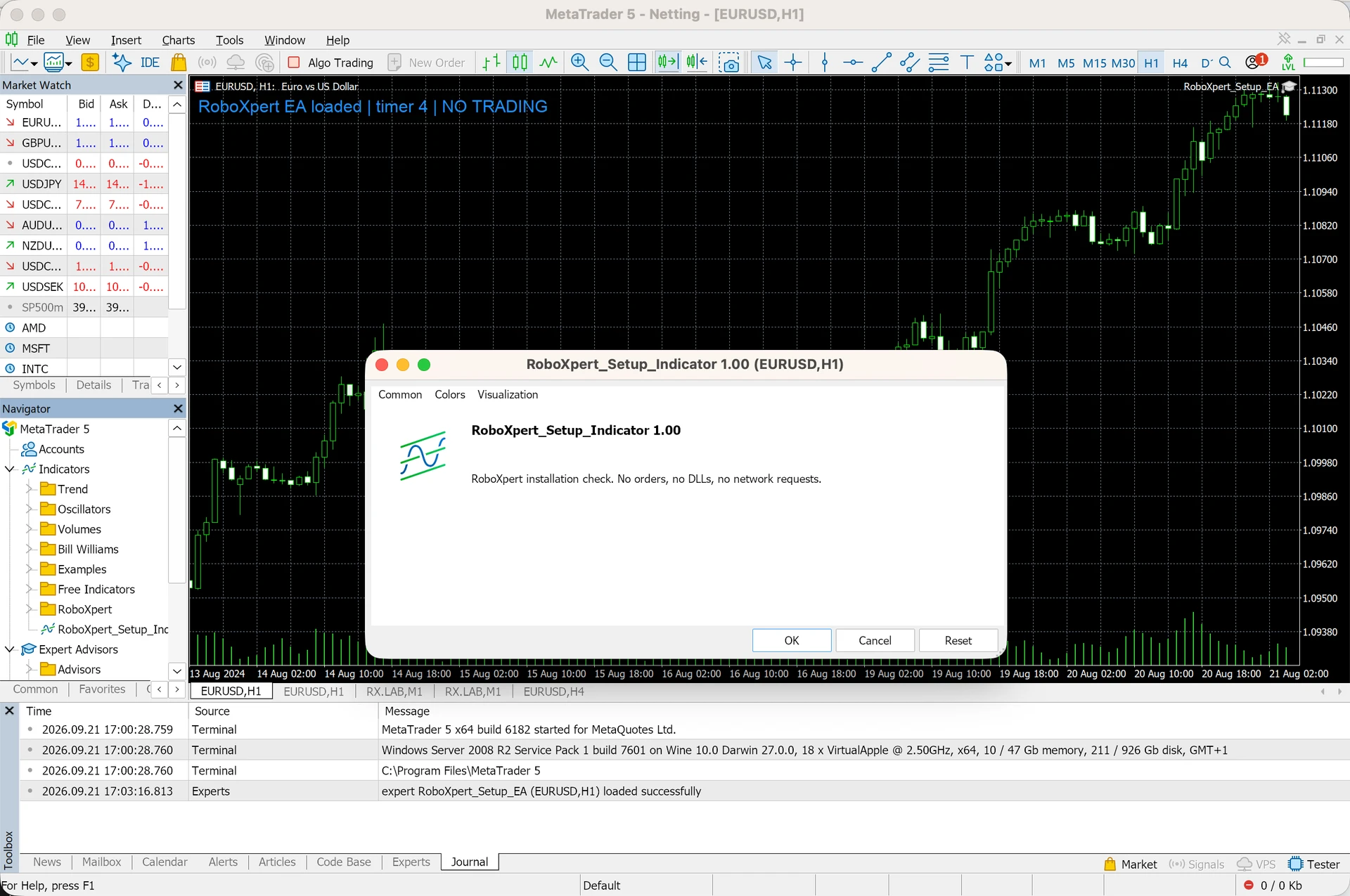
Click the intended chart, then double-click your indicator under Navigator → Indicators. Review its settings and click OK. A custom indicator does not need the EA trading switch just to display its output.
Check: The dialog names the indicator you selected. Its appearance and available tabs depend on the program.
MT5 screenshot: Attach the indicator to your chartConfirm that the program actually runs
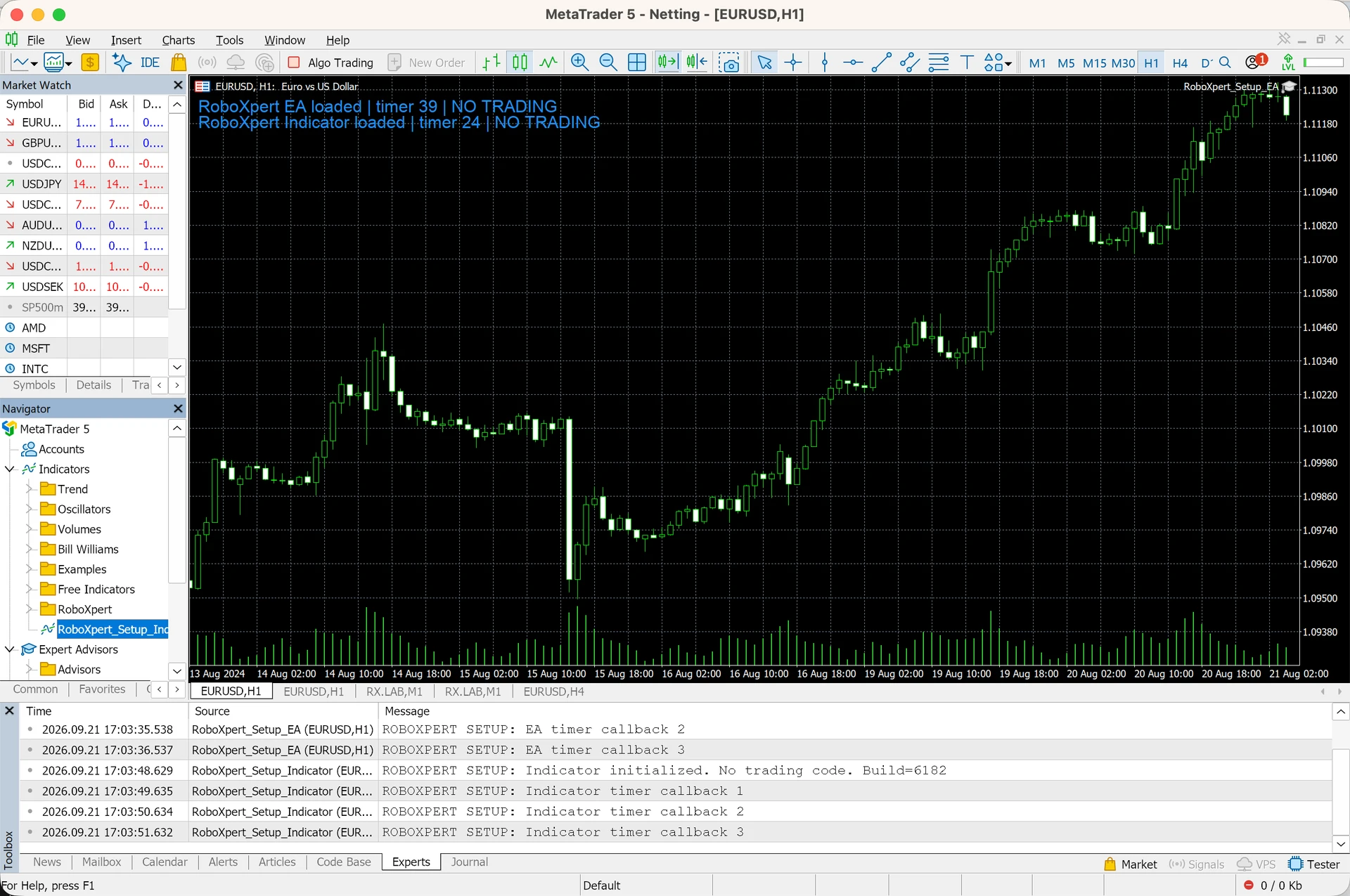
Open View → Toolbox, then click Experts and Journal. Read the startup messages and check the chart for the output described by your provider. In our test, both programs display a label and a changing timer.
Check: Both example programs initialized and ran. The displayed history is bundled sample data, with no connected broker account. This proves this installation check, not trading readiness or profitability.
MT5 screenshot: Confirm that the program actually runs
Before you start
Confirm three things with the software provider: MT4 or MT5, EA or indicator, and compiled program or source code. Also check any stated macOS/Wine limitations, licensing requirements and extra files. A successful platform installation does not establish compatibility with every add-on.
Scroll horizontally if needed
| What you received | What it means | Next step |
|---|---|---|
.ex4 | Compiled MT4 program | Use the MT4 folder for its program type |
.ex5 | Compiled MT5 program | Use the MT5 folder for its program type |
.mq4 / .mq5 | Source code | Compile with the matching MetaEditor |
.set | Saved input settings | Load into the matching program's Inputs; it is not an EA |
.zip | An archive | Extract it and inspect the included instructions |
An EX4 or EX5 extension alone does not tell you whether the file is an EA, indicator or library. Use the provider's description. Renaming an EX4 to EX5 does not convert it. See MetaEditor's compilation documentation.
Use a demo account for the first operational check. Keep an existing working setup intact and back up your own programs, presets and templates before replacing anything.
Step 1: Install MetaTrader on your Mac
- Open Apple menu → About This Mac and note your macOS version and processor.
- Follow the download link in the official MT5 macOS guide or MT4 macOS guide. If your broker supplies a package, use its official website and installation instructions.
- Click the Finder icon in the Dock — the blue smiling face — and click Downloads in its sidebar. If your download ends in
.zip, double-click it first to unpack it. Then double-click the.pkginstaller inside. - Follow the installer's prompts. The official packages configure Wine, the compatibility layer used to run the platform. Allow the documented Wine components when prompted by that installer.
- In Finder, click Applications, then double-click MetaTrader 4 or MetaTrader 5. Confirm the platform name and build under Help → About.
- These instructions use English menu names. If MetaTrader opens in another language, choose View → Languages → English, then restart that terminal when prompted. MetaTrader has its own language setting; changing the language of your entire Mac is not necessary.
- Use your broker's instructions to connect to the correct demo server. Check that it is the intended account and that the chart receives data when that market is open.
On first launch, the terminal may show a broker/server selection or login window. Use the details supplied by your broker for a demo account. Closing this dialog is sufficient for the account-free installation checks shown here, but it does not connect you to a trading account.
At the documentation check above, MetaQuotes listed macOS Catalina 10.15.7 for MT5 and Big Sur 11 for MT4, with Apple Silicon support. Recheck the linked requirements before downloading; broker packages may differ. The official Wine package does not require a separate Windows virtual machine for this route.
Checkpoint: the intended desktop terminal opens. Merely opening a broker's browser trading page does not complete this installation.
Step 2: Open the correct data folder
In the terminal you intend to use, choose File → Open Data Folder. This is the safest starting point when several installations exist. The MT5 folder reference and MT4 data structure explain the platform's storage layout.
If no file window appears, or the resulting Wine file window makes copying from macOS difficult, open the destination in Finder instead, using Apple’s Go to Folder instructions. Our MT4 test opened a Wine file window; the MT5 menu command did not open a usable file window, so Finder was the working route:
- Click the Finder icon in the Dock — the blue smiling face.
- Click Go in the menu at the very top of your screen, then Go to Folder…. The keyboard shortcut is Shift–Command–G: hold Shift and Command, then press G.
- Click the copy icon on the right of the matching folder address below. A checkmark confirms that the full address is in your clipboard. Click inside the Go to Folder box and paste with Command–V, then press Return. This address goes into Finder; you do not need the macOS Terminal or a console. You can also select the address and copy it manually with Command–C.
- In the folder that opens, double-click
MQL4orMQL5. Then double-clickExpertsfor an EA orIndicatorsfor a custom indicator.
Official MT5 default:
~/Library/Application Support/net.metaquotes.wine.metatrader5/drive_c/Program Files/MetaTrader 5
MT4 location observed with the official package, build 1476:
~/Library/Application Support/net.metaquotes.wine.metatrader4/drive_c/Program Files (x86)/MetaTrader 4
If Finder cannot find the MT4 folder: the official MT4 help page for macOS lists Program Files, but the fresh official package we checked on 21 September 2026 (MT4 build 1476) used Program Files (x86). Try the address with Program Files instead. Alternatively, paste this shorter address into Go to Folder:
~/Library/Application Support/net.metaquotes.wine.metatrader4/drive_c/
Then look inside Program Files (x86) and Program Files for the MetaTrader 4 folder.
These locations apply to the official wrapper's usual layout. Broker packages, older wrappers and separate installations may use different folders. If neither location exists, do not create a new folder with that name. Return to File → Open Data Folder in the active terminal and identify its actual location, using the package provider's instructions if necessary.
Checkpoint: you have found the active installation's MQL4 or MQL5 folder.
Step 3: Copy your EA or indicator
Use this map relative to the terminal's data folder:
Scroll horizontally if needed
| Platform | Program type | Destination | Compiled file |
|---|---|---|---|
| MT4 | Expert Advisor | MQL4/Experts | .ex4 |
| MT4 | Custom indicator | MQL4/Indicators | .ex4 |
| MT5 | Expert Advisor | MQL5/Experts | .ex5 |
| MT5 | Custom indicator | MQL5/Indicators | .ex5 |
Keep the destination folder open, then follow these small steps:
- In Finder, choose File → New Finder Window. Click Downloads in the new window's sidebar.
- If your provider supplied a ZIP file, double-click it to unpack it, then open the unpacked folder.
- Click the EA or indicator file once to select it. Hold Command and press C to copy it.
- Click your first Finder window — the one showing
ExpertsorIndicators. Hold Command and press V to paste. - Check that the same filename now appears in that destination. An EA goes in
Experts; an indicator goes inIndicators. Repeat separately if you have both.
Copy the file; do not try to launch an EX4 or EX5 by double-clicking it in Finder. If macOS asks to replace an existing file, stop and check which version you want to keep.
Keep the provider's subfolders and supporting-file layout. For example, an EA may require an indicator under Indicators, an include file under Include, or a library under Libraries. Putting every supplied file in Experts is not a general installation method. Avoid replacing existing files without checking their versions.
If you received source code, open it in the matching MetaEditor and choose Compile. Inspect compilation errors and confirm that an executable was produced. Missing include files require the complete source package or help from its author; renaming the extension cannot fix them.
Bought through the MQL5 Market?
Use the terminal's Market installation flow instead of treating a licensed product as a freely transferable file. Sign in with the MQL5.community account used for the purchase, open the Market tab, locate the product in the Purchased section, and choose Install. The community account is distinct from your broker login. MetaQuotes documents installation and activation here.
Checkpoint: the executable and its required supporting files are in the intended installation, or the Market installation has completed.
Step 4: Refresh and attach
- Click the MetaTrader window to return to it. Choose View → Navigator. Navigator is the panel containing folders such as Accounts, Indicators and Expert Advisors.
- Click the small expand control beside Expert Advisors or Indicators, matching your file type. Right-click inside the Navigator panel and click Refresh. On a Mac trackpad, click with two fingers if that is your configured secondary click. If necessary, restart this terminal after saving work and considering any EAs already running there.
- Open the symbol and timeframe specified by the provider.
- Drag the program from Navigator onto that chart, or double-click it with the intended chart active.
- Review the inputs. Load a
.setfile through Inputs → Load only when it belongs to this program and version, then confirm the settings.
For MT5, see the official program startup instructions. A chart accepts one EA at a time; attaching another replaces the first. Use a separate chart when appropriate.
Checkpoint: the program is attached. That alone does not prove successful initialization or permission to trade.
Step 5: Check startup and permissions
For an EA, inspect both its individual trading permission and the terminal-wide control: commonly Algo Trading in MT5 and AutoTrading in MT4. MT4's EA properties include Allow live trading; despite the label, it is relevant to EA execution on a demo account too. Enable trading only for the setup you intend to run. See MT4 EA setup.
A custom indicator does not need the EA trading switch just to calculate and display its analysis. DLL or web-access requirements are separate: grant them only for trusted software with a documented need. A permission checkbox does not establish that a Windows DLL works with your Wine setup.
To find the messages, choose View → Toolbox in MT5 or View → Terminal in MT4. In the panel that opens at the bottom, click Experts, then Journal. Look for startup errors and missing dependencies. Check an indicator against its documented output; some tools draw only when conditions are met.
Checkpoint: record what actually happened. If MT5 loads the EA but takes no trades, continue with our EA diagnostic. Do not weaken trading rules merely to force an entry.
When something does not work
Scroll horizontally if needed
| Symptom | Next check |
|---|---|
| File will not paste into the Wine window | Use two Finder windows and the verified macOS destination |
| EA or indicator is missing from Navigator | Compare platform, program type, actual data folder and executable; then refresh |
| Only an MQ4/MQ5 file is present | Compile the full source package and read the errors |
| Program appears but fails to start | Read the earliest relevant log entry; check dependencies and licence |
| Program works in another installation | Compare builds, file paths, inputs and dependencies before reinstalling |
| EA loads but does nothing | Investigate permissions, expected conditions and logs separately |
| Installer is blocked or behaves unexpectedly | Verify the download source and consult the current provider instructions |
These are investigation steps, not promises that one switch will fix every program. Preserve the relevant messages before restarting or reinstalling. Never delete an entire Wine environment merely to make a missing file appear.
Will the EA run when my MacBook sleeps?
Do not rely on a local EA continuing through Mac sleep, shutdown, loss of connection or a closed terminal. A dark display and system sleep are different states. Review Apple's sleep settings, and test the actual setup instead of assuming that plugging in the charger or closing the lid preserves operation.
For unattended operation, a compatible remote environment can separate execution from the laptop. MetaTrader virtual hosting and a full Windows VPS are different products. MetaTrader hosting migrates supported charts and programs; it prohibits DLL calls and has other migration restrictions. Read the official migration rules before choosing it for your EA.
After a migration, verify remote logs and which instance is responsible for execution. Avoid unintentionally running duplicate copies locally and remotely. Successful remote startup still says nothing about profitability.
Use our MetaTrader VPS vs Windows VPS comparison to check your EA's requirements, understand remote access from a Mac and compare the full cost before choosing hosting.
Frequently asked questions
Can I use MT4 and MT5 on the same Mac?
Keep their applications, data folders and add-ons separate. Start from File → Open Data Folder in the relevant terminal each time. An MT4 program is not an MT5 program.
Why can I see the file in Finder but not in MetaTrader?
The folder may belong to another installation, the program may be under the wrong category, or you may have source code without a usable executable. Work through the folder and file checks before reinstalling.
Do I need to buy a Windows virtual machine first?
Not for the official macOS/Wine installation described here. If a particular EA requires another environment, confirm that requirement with its developer before paying for additional software or hosting.
Does a successful installation mean an EA is ready for real money?
No. It establishes only the setup checks you actually completed. Use the EA selection guide to assess evidence, risk, support and operating requirements separately.

Sources & further reading
- MetaTrader 5 Help: installation on macOS
- MetaTrader 4 Help: installation on macOS
- MetaTrader 5 Help: files and folders
- MetaTrader 4 Help: terminal start and data structure
- MetaEditor Help: compilation
- MetaTrader 5 Help: Expert Advisors and custom indicators
- MetaTrader 4 Help: launching and configuring Expert Advisors
- MetaTrader 4 Help: interface languages
- MQL5 Programming for Traders: interface language
- MetaTrader 5 Help: installing purchased Market applications
- MetaTrader 5 Help: virtual hosting migration and restrictions
- Apple Support: open a folder by its path in Finder
- Apple Support: sleep and wake settings for Mac
Your next question