Learn
MT5 EA Not Trading? Diagnose Permissions, Signals and Order Errors
At a glance
When an MT5 EA does not trade, separate four questions: did the program start, is trading allowed, did its conditions trigger, and what happened to the order request? Begin with the relevant Experts and Journal entries. An enabled Algo Trading control does not prove there was a signal, and an empty log does not prove the EA is working correctly. In our own MT5 software test without an account or broker connection (build 6182, synthetic prices, 21 September 2026), a teaching EA kept running with Algo Trading off and its order request returned code 10027; with Algo Trading on, the same request still failed with code 10013 (invalid request).
On this page

You have attached an Expert Advisor to MT5, but it is not opening trades. Before changing its settings, identify where the expected action stops. This guide is for an already installed MT5 EA. A working program can be waiting for a valid condition, prevented from trading, or receiving an order rejection. Those situations need different checks.
Not installed yet, or unable to find the EA in Navigator? Start with installing an EA in MT5 on Windows, which separates file, source-code and Market installation routes, or on a MacBook with MetaTrader on Mac: installation, data folders and adding EAs or indicators.
Platform references were checked on 21 September 2026. Labels can vary by terminal build and language. RoboXpert develops trading software; AI assisted with research, code and drafting. This is an execution diagnostic, not a recommendation to trade or an assessment of an EA's profitability. See our editorial disclosure.
The section on “failed to get list of signals” was added from a source check on 1 October 2026. It is a documented triage case; we have not reproduced that exact service failure in our own terminal.
If orders execute but positions merge, disappear or belong to another EA, check MT5 hedging versus netting and multiple-EA conflicts. That is a different diagnosis from a missing signal.
Start with the evidence
Pick one specific time when you expected an action. Confirm which terminal instance, EA version and chart you are observing. A local terminal and the terminal running on a VPS may have different settings and logs.
Open MT5's Toolbox, then inspect Experts and Journal. The Experts tab is the starting point for program messages; use the surrounding Journal entries for platform context. Read the first relevant failure, not just the last line. Keep timestamps and a few surrounding entries together.
Scroll horizontally if needed
| Observation | What it establishes | Next evidence to find |
|---|---|---|
| EA appears on the chart | It is attached | Successful initialization or an explicit startup error |
| Automated trading is enabled | A permission is enabled | The other permissions and the EA's decision at that time |
| EA reports an entry signal | Its diagnostics report a condition | Remaining filters and whether a request was sent |
| Request is logged | An operation was attempted | Response, order status, resulting deal or position |
| No useful messages | The available log is insufficient | Documented debug mode or developer diagnostics |
- 01Runtime
Did the EA initialize?
- 02Permission
Is trading allowed?
- 03Decision
Are its conditions met?
- 04Execution
What happened to the request?
Record the exact symbol, including any broker suffix, timeframe, relevant inputs, MT5 build and server time. Compare these with the EA's instructions. A program configured for one symbol or session may correctly stay idle on another. A trade assistant or indicator may never be intended to open entries automatically.
Failed to get list of signals: is this why the EA stopped?
That line alone does not establish why your EA is not trading. First read its Source column. In a May 2023 user's Journal report, “failed to get list of signals” appears under Signal, alongside a Community authorization failure. That is a firsthand report from a particular installation, not a confirmed universal cause or a tested fix.
MetaTrader's Signals subscription service copies another account's trades. An EA's entry signal is a condition calculated by its own code. The shared word does not make them the same system. MetaQuotes documents the subscription's Community login and copying settings separately.
Use this evidence split:
Scroll horizontally if needed
| What you observe | Next check |
|---|---|
| Source is Signal; you intended to use a Signals subscription | Check the intended subscription and the Community authorization messages, then follow the service documentation. Do not share passwords in support logs. |
| A separately installed EA is idle | Follow its initialization, permissions, entry conditions and order response below. Ask its developer whether it depends on an external service. |
| Broker connection or price updates also fail | Investigate that connection at the same timestamp; a shared connectivity problem may affect more than one subsystem. |
| The EA logs a trade return code | Diagnose that request using the return-code reference, rather than treating a neighbouring Signals message as the order response. |
Preserve the surrounding log lines and exact build. We have not reproduced this message or established one fix for it. Deleting Community folders, reinstalling MT5 or changing trading permissions is not justified by this line alone. If the intended Signals service remains unavailable, use its support route; if the EA's decision is unknown, collect the developer diagnostics.
Diagnose your MT5 EA
Use observations from a single event. The helper suggests an investigation from your answers; it does not connect to your account, read your terminal or certify a fix. If you have a trade return code, it can narrow the next check even when other evidence is incomplete.
Find your next check
Use observations from the same EA, terminal and time. Leave anything you cannot establish as Not sure.
This helper uses your answers, not a connection to MT5. Entries stay in this tab and clear on reload. Save your notes before leaving.
Check the current terminal's Experts log for loading, initialization or a failure.
Check both the terminal-wide control and this EA's permission, on the instance running it.
Use this EA's diagnostics or documented conditions for the specific time, including its filters.
Look for a matching request and response. A quiet log is not proof that nothing was attempted.
Select only a response from the relevant request. MT4 errors and MQL5 runtime errors use different references.
Next investigation
More evidence is needed
Startup or trading permissions are still unconfirmed. Unknown answers are not passed checks.
Next: Confirm the active instance, initialization and both local permissions. Record the relevant Experts and Journal entries.
Read the relevant checks →Check trading permissions
An enabled Algo Trading control in the toolbar is only one part of the permission chain, so an MT5 EA can still take no trades while Algo Trading is enabled. In our account-free lab, switching the control on changed the trade return code from 10027 to 10013 (invalid request). With no account connected, the request still failed (lab record). MetaTrader documents both the platform-wide automated-trading setting and the individual EA's trading permission. Inspect both on the instance actually running your EA.
The distinction matters: MQL5's OnTick documentation says disabling automated trading prevents EA trade requests without stopping the program's execution. An EA can continue evaluating data while it cannot trade.
Check whether a permission was deliberately disabled, including after a configuration or account change. Do not turn on trading across an unfamiliar live setup just to make the warning disappear. Establish the intended settings in an isolated test first.
Local and server restrictions also differ. 10027 points to client-terminal automated trading; 10026 points to the server. 10017 is the broader trading-disabled response. Keep the full message and ask the broker about account or symbol restrictions where appropriate. A local switch cannot remove a server restriction.
DLL imports and WebRequest access are separate dependencies. Enable them only if the EA's documentation requires them and you trust the software and destination. They are not universal “EA not trading” fixes.
No errors and no trades
A quiet log is not proof that the EA never tried to trade. Logging depends on the program, the event and which log you read. If the EA does not expose its decision process, you may need the developer's help.
Work from the EA's own documented rules:
- Entry condition: which values must be true, and on which completed bar or event?
- Filters: does a spread, session, news, exposure or daily-risk rule prevent a new entry?
- Data: are the inputs used by this EA available and current?
- Existing activity: does it already have a pending order or position that changes what it should do next?
Write down the observed value next to the expected condition. For example, “the EA reports spread 18 points against its configured ceiling of 15” is more useful than “it should have traded.” Those numbers are an illustrative example, not a recommended threshold.
If a signal is confirmed but the request is not sent, ask for diagnostics between the signal and the order call. Another guard or code path may intervene. If you only have a compiled EX5, do not pretend that its internal conditions are visible. Request a documented debug mode or diagnostic build.
Read the trade return code
The following short reference uses the MQL5 trade-request return codes, with suggested investigation steps. It is not the MT4 error list or the MQL5 runtime-error list. Check the origin of a number before matching it. Meanings are grounded in the official return-code reference.
10013 Invalid trade request
Inspect the full request and its context with the developer. This broad response does not identify a single invalid field or prove a broker rejection.
10027 Client automated trading disabled
Inspect the terminal-wide automated-trading control on the instance that produced this response. Record the state before changing it.
10026 Server automated trading disabled
Ask the broker to explain this account's automated-trading restriction. Repeated local toggling will not resolve a server restriction.
10017 Trading disabled
Check the account and symbol trading permissions with the broker; the code alone does not identify which restriction applies.
10014 Invalid order volume
Compare requested lots with the symbol's minimum, maximum and volume step. Correct the sizing calculation in a test environment.
10016 Invalid stops
Compare requested SL/TP with the current price, order direction, tick size and permitted stop distance. Do not remove protection to force a trade.
10018 Market closed
Check this symbol's trading session and the broker's server time at the request timestamp.
10019 Insufficient funds for the request
Inspect required and available margin for this request. Review sizing on demo; do not treat this code as a recommendation to deposit money.
10030 Unsupported filling policy
Ask the developer to match the requested filling policy to the symbol's execution and filling settings.
10031 No trade-server connection
Check terminal connection, selected server and the timing of the request. A connection that works now does not explain an earlier outage.
For volume, stops and execution settings, compare the request with the current symbol properties. Check units as well as values: points, price increments and lots are not interchangeable. The diagnosis should identify a mismatch, not supply a universal lot size or stop distance.
For developers, a successful OrderSend() return value is not sufficient evidence of execution. Inspect the result fields and follow the resulting trade events, as described in the OrderSend reference. A pending order, a filled deal and an open position are different observations. A response about closing an existing position is not necessarily evidence of a new entry signal.
Works in the tester but not on the account
This section is for an EA that opens trades in the MT5 Strategy Tester (a backtest) but opens none on a demo or live account. First define what “works” means. Does the tester initialize the EA, generate entries, or produce attractive results? Only the first two concern this diagnostic. Interpreting returns belongs in our backtest versus live trading guide.
Create a small comparison record before drawing a conclusion:
Scroll horizontally if needed
| Compare | Tester | Account / running terminal |
|---|---|---|
| Software | Exact EA version and inputs | Exact EA version and inputs |
| Event | Historical timestamp and signal | Expected event and observed conditions |
| Instrument | Symbol specification used | Actual symbol, suffix and current specification |
| Environment | Test model and simulated conditions | Permissions, connection and account restrictions |
| Outcome | Request, response and simulated fill | Request, response and actual order/deal status |
Different time periods do not promise identical signals. If the tester shows an entry on a historical Tuesday, that does not mean the EA should enter immediately when attached today. A comparison is most useful when it identifies a specific differing condition.
For a VPS setup, collect logs from the execution environment itself. Make sure you are not inspecting a local chart while a different configuration runs remotely. Avoid blindly restarting the terminal: save the relevant logs and understand how the EA restores state first.
If the fault appears only after moving the EA, check the differences between MetaTrader Virtual Hosting and a full Windows VPS. Their dependency and migration rules are not interchangeable.
A controlled MT5 lab
The following section records our own controlled execution checks. These are software tests using a teaching EA and synthetic prices, not an EA performance backtest, broker execution test or live-account result.
Test record, 21 September 2026: MT5 x64 build 6182 through Wine 10.0 on macOS; separate portable terminal; RoboXpertPermissionProbe v1.00; custom symbol RX.LAB, M1. We created 2,880 artificial one-minute bars for 1–2 September. No trading account or broker connection was used.
01 — Permission off, program still running
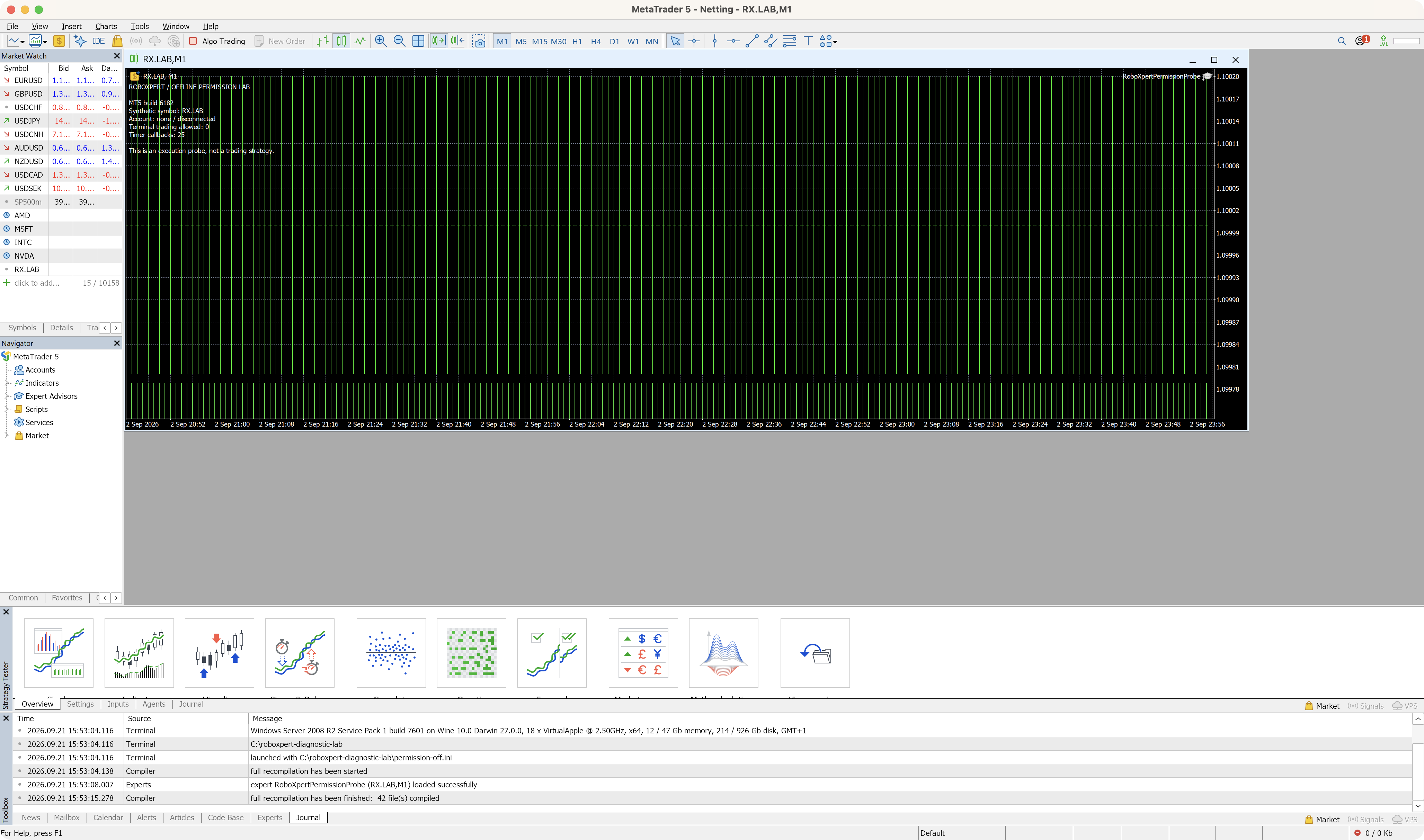 Open original screenshot ↗
The terminal reported trading permission 0. Timer callbacks continued and the local request returned 10027. This demonstrates that a running EA can still be prevented from trading.
Recorded EA messages · timestamped rows in download
RX_OFFLINE_INIT build=6182 account_login=0 connected=0 terminal_trade_allowed=0
RX_OFFLINE_TIMER callback=1 terminal_trade_allowed=0
RX_OFFLINE_REQUEST OrderSend=0 retcode=10027 runtime_error=4752 comment=AutoTrading disabled by client
RX_OFFLINE_TIMER callback=2 terminal_trade_allowed=0
02 — Permission on, execution still fails
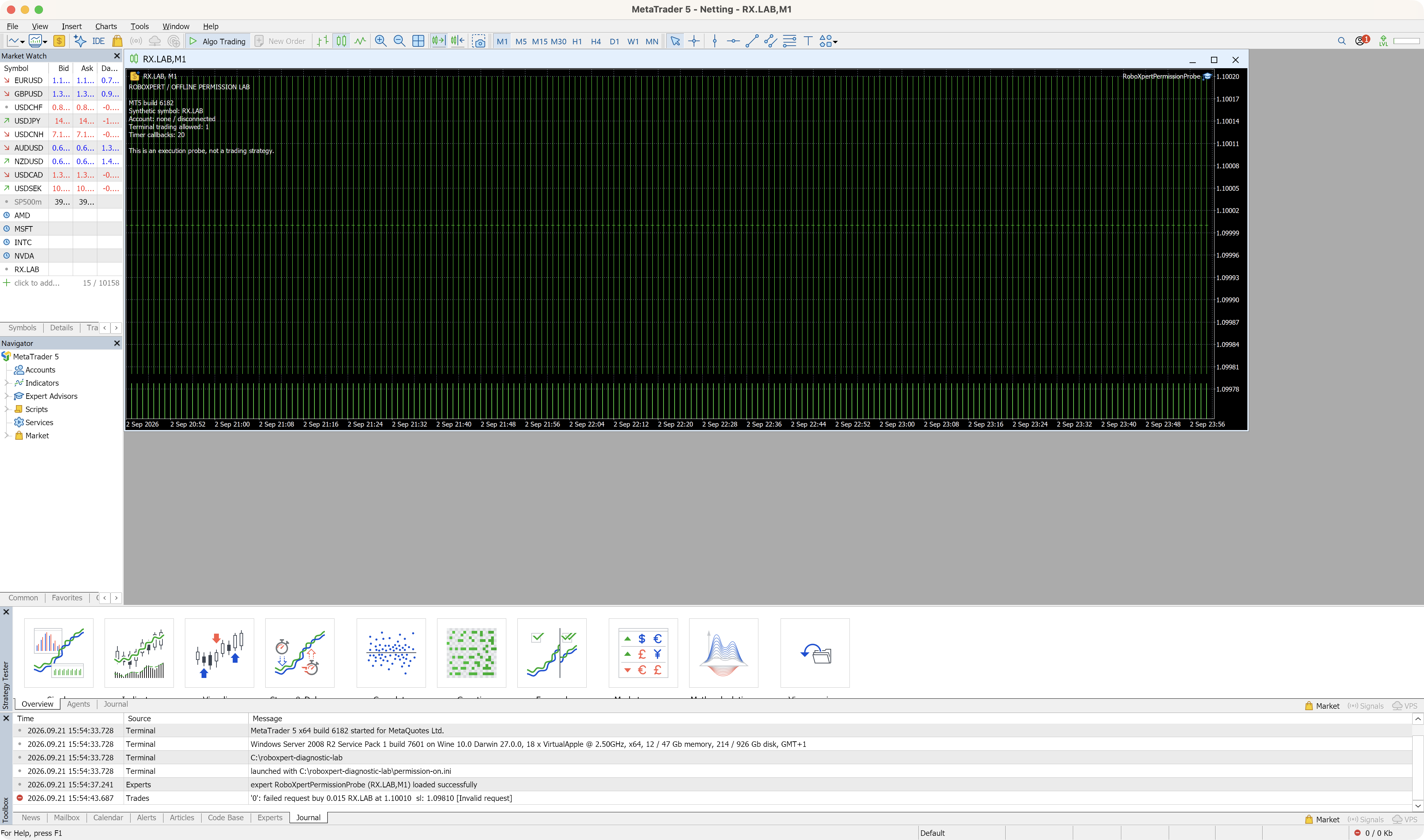 Open original screenshot ↗
With local permission enabled, the same account-free setup returned 10013 (invalid request). This is not a successful fill or proof of the precise invalid field. Enabling one permission did not establish a working order path.
Recorded EA messages · timestamped rows in download
RX_OFFLINE_INIT build=6182 account_login=0 connected=0 terminal_trade_allowed=1
RX_OFFLINE_TIMER callback=1 terminal_trade_allowed=1
RX_OFFLINE_REQUEST OrderSend=0 retcode=10013 runtime_error=4756 comment=Invalid request
RX_OFFLINE_TIMER callback=2 terminal_trade_allowed=1
Limits: These are local terminal checks, not connected demo tests. The volume and stops cases in the reference above were not reproduced here. Our separate attempt to start Strategy Tester stopped because an account was not configured, so we report no tester fills. The runtime-error field and trade return code are different fields; do not treat them as interchangeable.
Download the timestamped log extract · Download teaching source, configuration and reproduction notes
Send a useful support request
Send a reproducible observation rather than “the bot doesn't work.” Keep a private copy of the original logs, and share only the relevant sanitized excerpt. Do not include trading passwords, account numbers or unrelated personal information.
A useful request identifies the EA version, MT5 build, environment, exact symbol, timestamp, expected action, observed action and relevant inputs. Include the earliest failure and the request/response sequence where available. State which facts remain unknown.
At [server time and timezone], EA [name/version] on [symbol/timeframe] was expected to [action] because [documented condition]. It instead [observation]. Attached are the relevant settings and sanitized log lines. Can you identify the next condition or order response I should check?
The interactive helper can export your observations. The blank worksheet also works without JavaScript.
Download the support template (TXT). Record the environment, expected action, observed behaviour and relevant logs. A plain-text template with no registration.
If the required environment or support is unclear before purchase, use our EA selection checklist to resolve compatibility and operating requirements first.
Frequently asked questions
Why is my EA not trading even though Algo Trading is enabled?
That control does not establish successful startup, individual EA permission, a qualifying signal or a successful request. Check the same event through the four-stage diagnostic.
Is an empty Experts log proof that the EA is working?
No. It may simply lack useful messages. Confirm initialization, the relevant event and the EA's own diagnostic options. If its internal decisions are unavailable, record that limitation.
Should I wait a fixed number of hours before assuming there is a fault?
There is no universal waiting period. Use the EA's documented conditions and expected behaviour. A specific missed, evidenced event is more useful than elapsed time alone.
Does fixing an order error mean the EA is ready for live trading?
No. It establishes only what your controlled test demonstrated about execution. Strategy risk, robustness, costs and operational readiness require separate evidence. Do Expert Advisors really work? separates those judgments: functional, economic, repeatable, attributable and operable.
Can this page diagnose my account automatically?
No. The helper uses the observations you select and runs locally in your browser. It needs no account credentials, external account import or AI analysis. Its output is a next investigation, not an automatic account assessment.
If you are building the EA yourself
For an AI-assisted development workflow, start with our MT5 EA built with AI. It goes from one prompt to a compiled EA and a backtest in which every trade is checked against the rule. If you want MetaTrader's built-in assistant to explain an error message or an EA's inputs, our MT5 AI Assistant guide lists tasks whose answers you can verify against a source.

Sources & further reading
- MetaTrader 5 Help: running and configuring Expert Advisors
- MetaTrader 5 Help: Experts tab
- MQL5 Reference: OnTick and automated-trading permissions
- MQL5 Reference: trade server return codes
- MQL5 Reference: OrderSend
- MQL5 Reference: symbol properties
- MetaTrader 5 Help: custom instruments and testing
- MetaTrader 5 Help: Signals subscriptions and Community login
- MQL5 forum: user's original Journal report, May 2023 (not an official diagnosis)
Your next question