Learn
How to Install an Expert Advisor in MT5 on Windows
At a glance
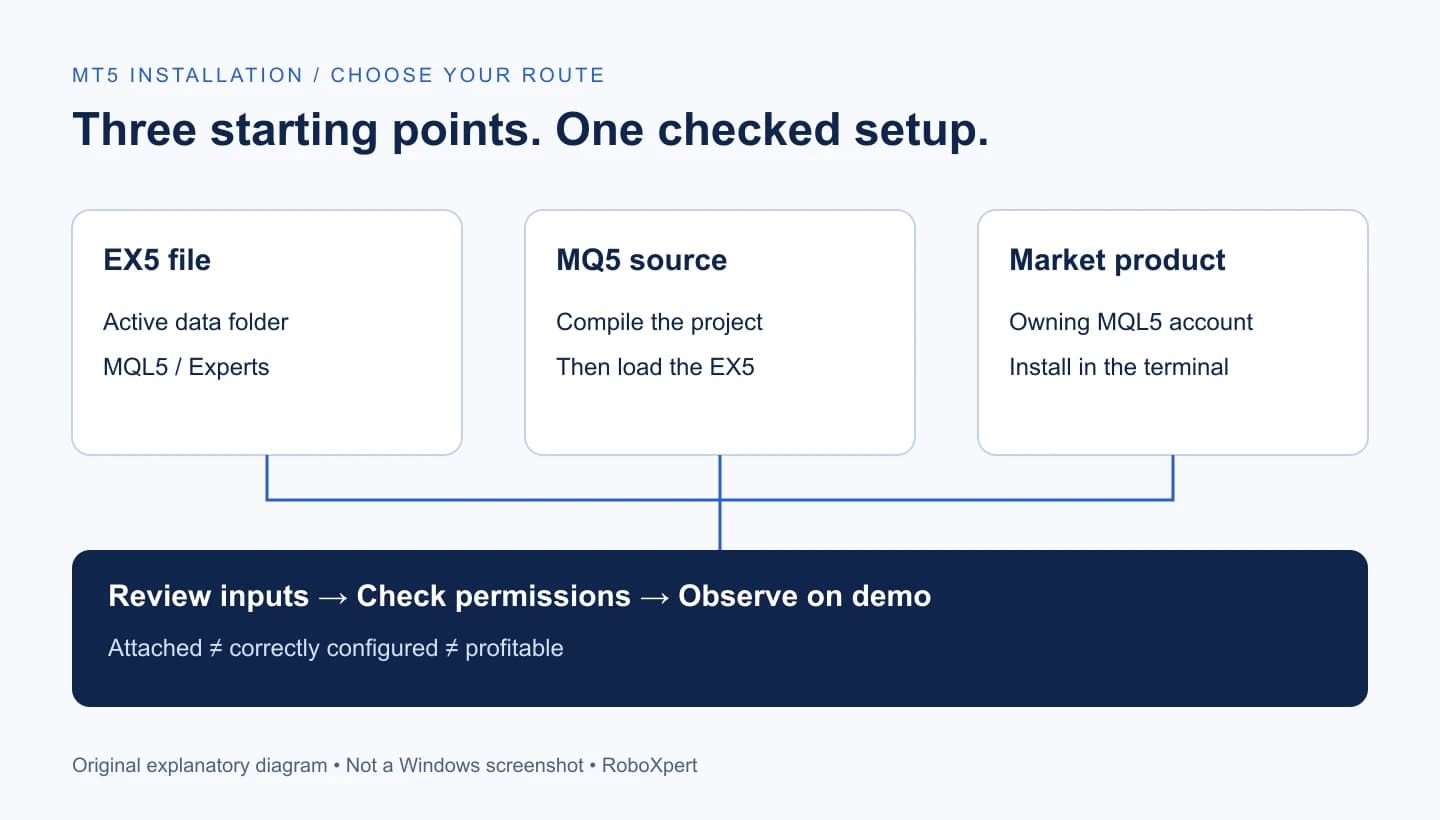
For an EA supplied as an EX5 file, open the active MT5 terminal’s data folder and place it under MQL5/Experts. Compile MQ5 source first, or install Market products through your MQL5 account. Attach the EA to the intended chart, review its inputs and permissions, and inspect its startup messages on a broker demo account. A visible EA name confirms attachment; it does not prove correct execution or profitability.
On this page
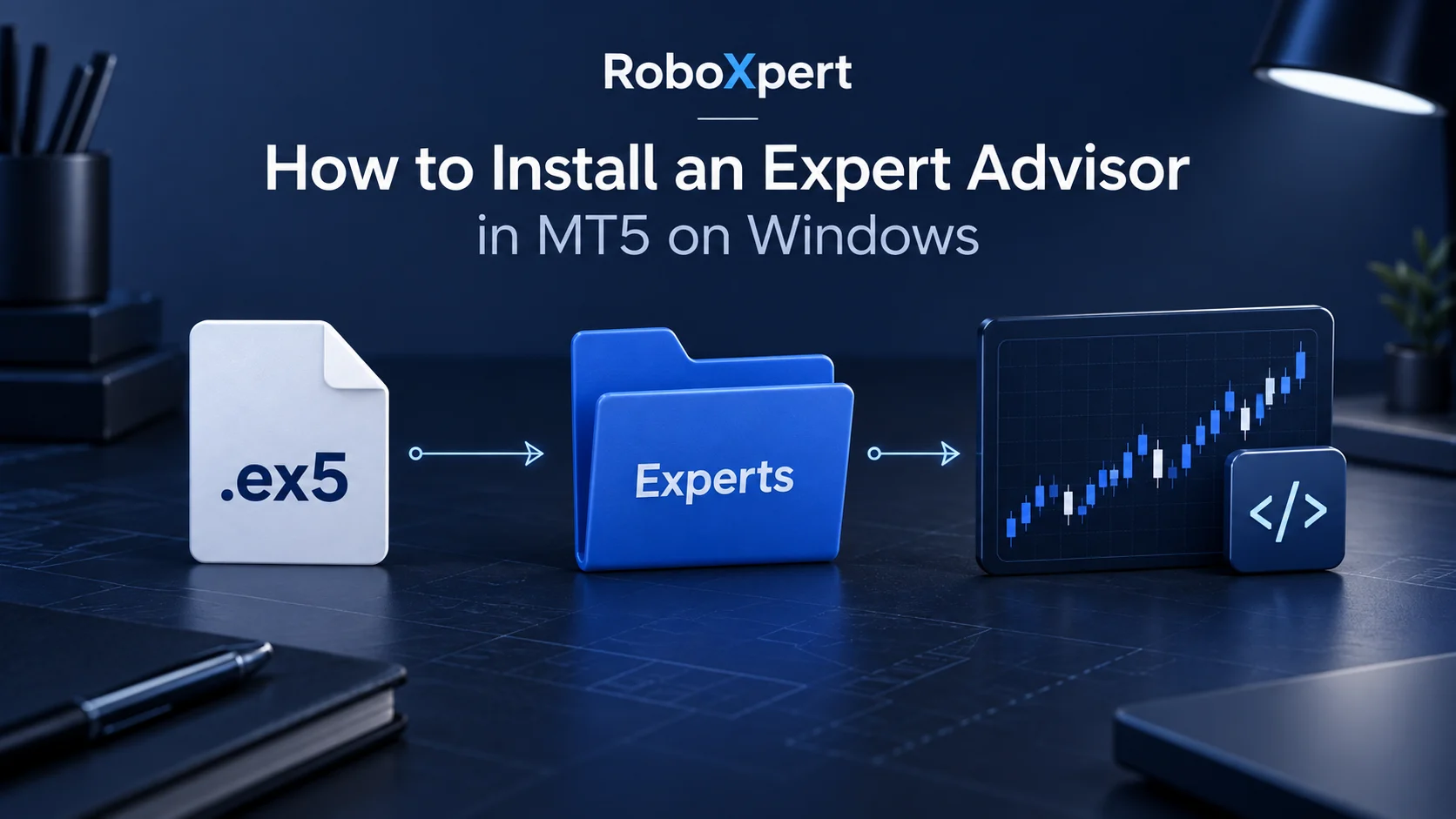
To install an Expert Advisor in MT5 on Windows, first identify how it was supplied. A compiled file, source-code project and Market purchase have different installation paths. Follow the matching route, then verify the configuration before permitting trades.
Before you begin
Have the Windows desktop terminal, a broker demo account, the EA’s documentation and its original files ready. Record the intended symbol, timeframe and product version. For Mac-specific paths and compatibility, use our MetaTrader on Mac guide.
Keep automated trading disabled while preparing the setup. If your terminal already operates other robots, use a separate demo terminal for this exercise: changing a platform-wide permission also affects its other EAs. Do not experiment on an account with positions whose management you do not understand.
Our acceptance criterion is deliberately precise: the intended version loads in the intended terminal, with reviewed settings, and its observed behavior matches its documentation. “The chart has an icon” is a narrower observation.
Start with the file you actually have
Scroll horizontally if needed
| What you received | Your route | What it does not establish |
|---|---|---|
An EA executable, .ex5 | Copy the EA into the active data folder’s MQL5/Experts directory | Its trading logic is suitable for your account |
Main source, .mq5, possibly with dependencies | Compile the complete project in MetaEditor | A successful build is a profitable strategy |
A .zip package | Extract and identify each component before installation | Every file belongs in Experts |
A .set preset | Load it into the matching EA’s input settings | It contains the robot itself |
| A Market purchase or rental | Use the terminal’s Market installation route | Copying a file transfers its activation |
An MT4 .ex4 file | Obtain the MT5 version from its developer | Renaming the extension converts the program |
The folder roles come from the official data-directory reference; compilation is a separate MetaEditor operation. An .ex5 extension alone does not identify an EA: indicators and other MQL5 programs can also use it. Check the package’s documented role.
1. Identify the active terminal and its data folder
In the terminal you intend to use, select File → Open Data Folder. Open MQL5, then Experts. An example destination is:
[active terminal data folder]\MQL5\Experts\MyRobot\MyRobot.ex5
The bracketed text is a placeholder, not a Windows folder name. Do not guess a path under Program Files or use another broker terminal’s data directory. MetaQuotes documents both the data folder and its subdirectories.
Record: terminal name, build shown in its About dialog, demo server and the path you opened. Keep account identifiers private. If two terminal windows are open, label the installation record before copying anything.
2. Place the package correctly, or compile its source
For a compiled EA, copy its .ex5 into Experts or a subfolder. Preserve any documented package structure. Supporting indicators belong to their documented indicator location; include files and libraries have separate roles. Do not relocate every dependency into the EA folder simply because it came in the same archive.
For source, open the main .mq5 file or project in MetaEditor, then choose Compile or press F7. Inspect the Errors tab. MetaEditor produces the .ex5 alongside the main source or project when compilation succeeds; errors prevent a new executable. Warnings still deserve investigation. See the compilation reference.
Expected observation: the executable exists in the intended location. If an older executable was already present, inspect its modification time before assuming the failed build replaced it. Save the build output and ask the developer about missing dependencies; do not remove risk checks just to make source compile.
3. Use the Market route for a Market product
Sign in to the MQL5 Community account that owns the product, then find it under My Purchases in the terminal’s Market area and install it there. This login is distinct from your broker trading-account login. Installed Market robots are placed under Experts/Market; licensing and activations remain part of the Market process.
A Market demo is not a broker demo account. MetaQuotes states that a Market EA demonstration version can be tested in the Strategy Tester, but cannot run on an online chart—even when the connected brokerage account is a demo. A full product’s documented license conditions still apply. These distinctions are documented in Market purchases and demo versions.
Record: product/version and installation outcome. If licensing fails, resolve it through the product’s legitimate installation/support route before changing trading permissions.
4. Find the program and choose the intended chart
Open Navigator, expand Expert Advisors and look for the installed EA. Refresh the list if your build offers that command, or restart the demo terminal after saving your work. Navigator is the platform’s entry point for running installed programs. MetaTrader interface reference.
Open the documented instrument and timeframe. Check the full symbol name, including broker suffixes. If the developer specifies a multi-symbol EA attached to one control chart, follow that design instead of attaching copies indiscriminately.
Expected observation: you can identify one intended executable and one intended chart. If the program is missing, return to the active data path and build output. Enabling trading cannot fix a missing file.
5. Attach the EA and inspect every loaded input
Drag the EA from Navigator onto the chart or double-click it. Review the properties dialog before confirming. Use Inputs → Load for a matching .set preset. Only one EA can occupy a chart; adding another replaces the first. These controls are described in running and configuring EAs.
Before accepting a preset, make a small configuration table in your record:
Scroll horizontally if needed
| Item to inspect, if the EA provides it | Question to answer |
|---|---|
| Fixed lot size or percentage sizing | What exposure would this create on this demo balance? |
| Maximum positions and recovery rules | Can positions accumulate or grow after a loss? |
| Stop and exit controls | What happens if the terminal disconnects? |
| Session and spread filters | Which clock and units do these values use? |
| Magic number and multi-chart setup | Could two instances manage the same positions? |
These are our review questions, not a claim that all EAs expose identical settings. A preset filename such as “safe” or “conservative” answers none of them.
6. Grant the permissions the program actually needs
For trading, permission is required at both the platform level—the Algo Trading/AutoTrading control or Tools → Options → Expert Advisors—and in the individual EA’s properties. A global prohibition overrides an individual allowance. Account, profile or chart changes can disable automated trading according to your settings. Platform permission reference.
Scroll horizontally if needed
| Permission | Practical review |
|---|---|
| Automated trading | Enable for this demo exercise only after checking the account and configuration. |
| DLL imports | Leave disabled unless a trusted, understood dependency requires them. |
| WebRequest | If required, enter only the documented trusted destinations under platform options. |
| Modification of Signals settings | Not a general prerequisite for ordinary EA orders; it concerns the separate Signals subscription service. |
MetaQuotes describes DLL dependencies and Signals access in EA properties, and URL permissions in platform settings. “Tick every box” is not a sound installation procedure.
7. Check startup before waiting for a trade
After confirming the dialog, inspect the EA name/status on the chart and read recent Experts and Journal messages in the Toolbox. The official interface guide locates these program and platform records.
Use a staged observation record:
Scroll horizontally if needed
| Observation | Supported conclusion | Still to check |
|---|---|---|
| File appears in Navigator | Terminal discovers the program | Correct inputs and successful startup |
| Chart attachment and no reported startup failure | Initial loading appears successful | Required conditions and permissions |
| Documented signal logged | A decision condition was observed | Whether an order request followed |
| Request and server response recorded | An execution attempt can be investigated | Resulting orders, deals and exposure |
| Expected demo behavior repeated | Evidence for this tested setup | Live execution differences and economic value |
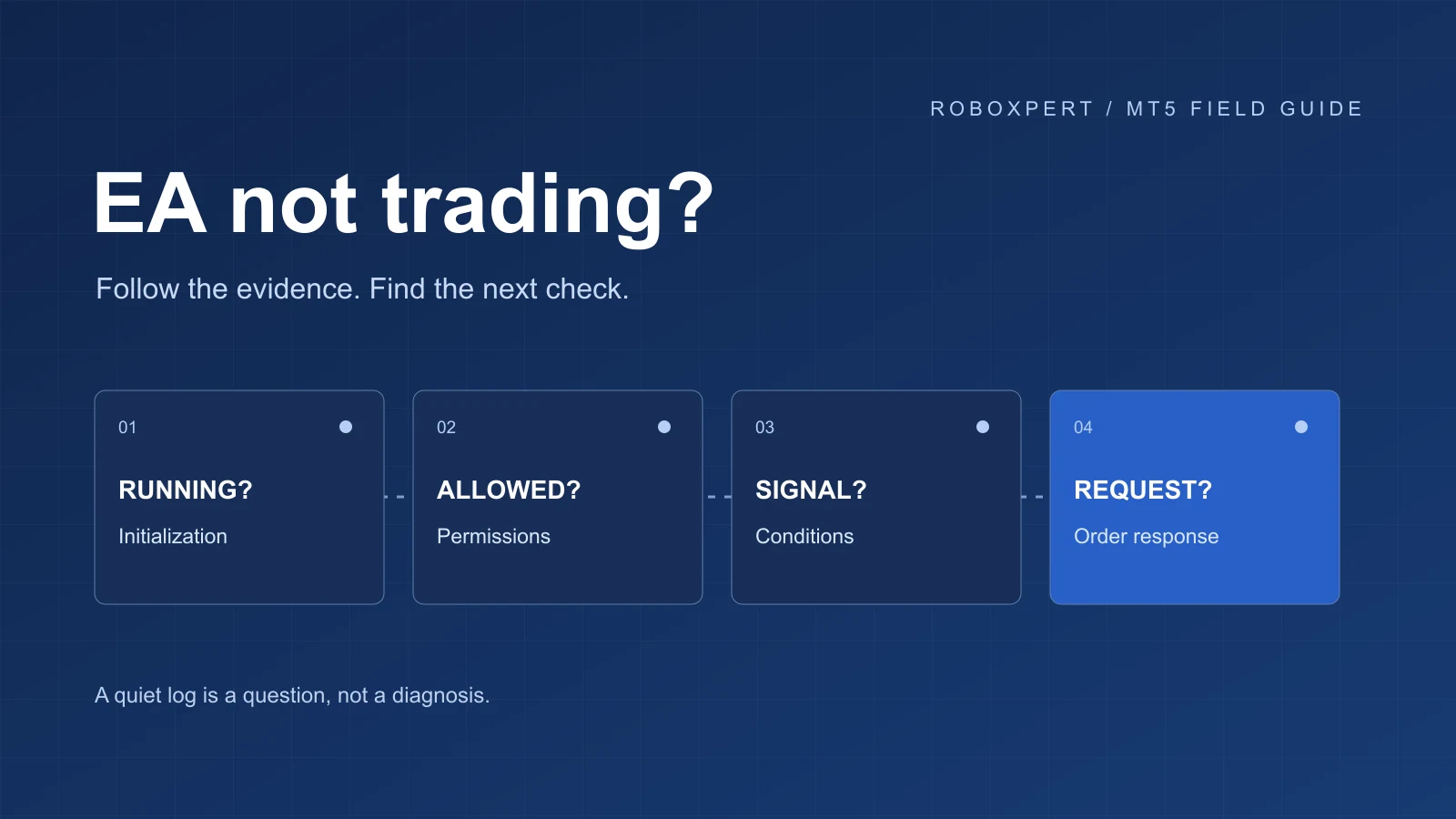
This table is our diagnostic framework. An absence of error messages alone cannot prove every internal dependency works. If no trade appears, do not change random settings to force activity. Continue with MT5 EA not trading: permissions, signals and order errors.
8. Save the record and decide how it will keep running
Save the reviewed inputs, version information and relevant timestamped logs. Document what you actually observed, including unresolved issues. If the EA has not encountered an entry condition, write “not observed,” not “passed.”
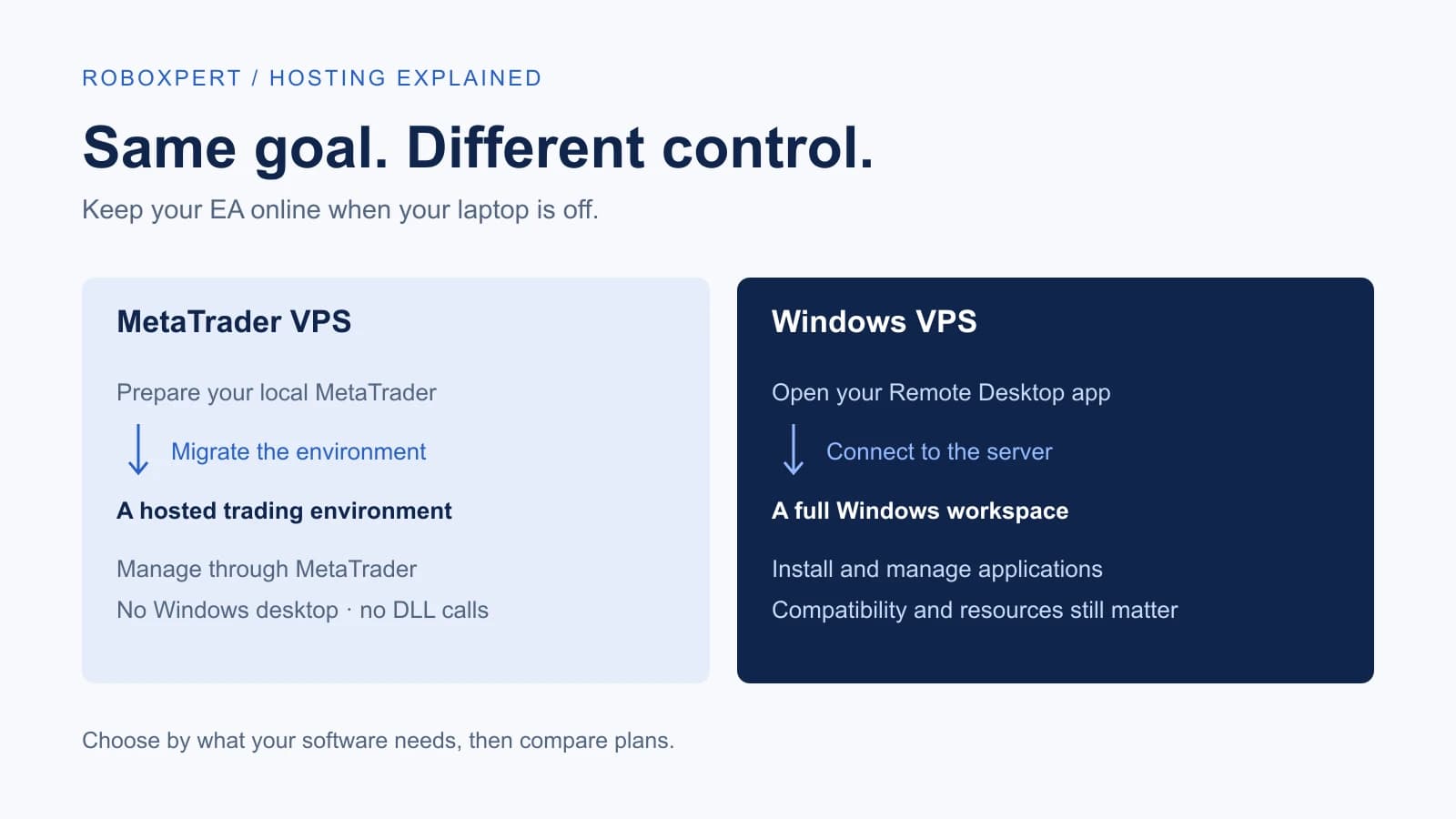
For continued operation, consider terminal availability, connectivity, monitoring and recovery after interruption. Our MetaTrader VPS vs Windows VPS comparison addresses hosting compatibility. Installation success alone is not a reason to move to a funded account.
Reader resource · TXT
Record your MT5 installation
A plain-text worksheet for the terminal, files, inputs, permissions and observed startup behavior. No credentials required.
Download the installation recordCommon installation questions
Can I install an EA using only a SET file?
No. It is an input preset. Obtain the matching program and version, then inspect what the preset changes. Loading someone else’s settings does not transfer their account conditions or results.
Can I put an MT4 EA into MT5?
Do not rename .ex4 to .ex5. Obtain or develop a compatible MT5 program. Installation paths cannot translate platform-specific code or APIs.
Does disabling Algo Trading close existing positions?
Do not treat a trading-permission switch as a close-all command. Arrange explicit position management before disabling or removing a robot; otherwise you can interrupt the automation you expected to manage an existing position.
Is an installed EA ready for live trading?
No. Installation, behavioral testing and evaluation of trading results are separate decisions. Start with the documented demo checks, then assess the evidence using our EA selection checklist.

Sources & further reading
Your next question