Learn
TradingView Alerts Not Working? A Tested Troubleshooting Guide
At a glance
If a TradingView alert is not working, start with the Alert Log. If the expected event is missing, inspect the running alert, its saved inputs and the realtime condition. If the event is present, inspect the selected notification channel or webhook receiver. In our controlled test on 1 October 2026, switching the chart inputs to disabled did not stop an existing alert: its saved server copy kept logging the original test tag.
On this page
A marker on a chart, an entry in the Alert Log and a notification on your phone are three different observations. Before changing your indicator, locate the first missing step.
This guide includes an original Pine Script probe and a controlled TradingView test from 1 October 2026. We checked server-side alert events and changed chart inputs deliberately. Email, push delivery, webhooks and broker execution were outside that experiment; those checks below are based on TradingView’s documentation.
Start with the Alert Log
Open Alerts → Log and look for the expected symbol, interval and event time. Record the timezone. Then use the closest symptom below. An empty filtered view alone does not prove that no alert fired: check the account and any log filters first.
Scroll horizontally if needed
| What you observe | What to inspect next | Useful evidence |
|---|---|---|
| The alert is absent from the Alerts list | Whether a running alert was actually created, and in which account | Alert name, condition and creation time |
| The alert is stopped, expired or still activating | Its displayed status before investigating the signal | Status and last-triggered time |
| Active alert, no expected Log event | Saved symbol, timeframe, script version, inputs and the exact realtime condition | The rule’s true/false values on the relevant bar |
| Log event exists, but no phone or desktop notification | Selected channel, notification schedule and recipient-device settings | Event time compared with the destination’s records |
| Log event exists, but the webhook receiver has nothing | TradingView’s Webhook status and the receiver’s access/error logs | HTTP status, event identifier and receiver timestamp |
| A trading connector received the message, but there is no order | The connector and terminal’s processing/execution records | Accepted/rejected command and broker response |
| Alert and current chart disagree after an input change | Whether the alert was created before that change | Saved alert context compared with current chart inputs |
This is a diagnostic order, not a ranking of how often each problem occurs. Avoid changing several settings at once: you lose the comparison that tells you what fixed the issue.
The alert stopped or expired
Check the alert’s displayed status before investigating the signal. TradingView’s alert setup page states that an alert is turned off automatically when its expiration setting is reached. TradingView’s alert setup.
If an alert stopped after a burst of events, inspect its status. TradingView documents an automatic stop when a regular alert triggers more than 15 times in three minutes. Do not test that limit by flooding a production receiver. Identify repeated calls or an overly permissive rule before restarting. Trigger-frequency limit.
Alert not triggering? Check the running alert, not just the chart
Pine code can expose an event without creating a running alert. TradingView executes created alerts on its servers using a saved copy of the script, inputs, symbol and timeframe. Later chart changes do not automatically update that copy. Alerts operate on realtime events; old chart markers are not a backlog of notifications. TradingView’s alert model.
Check which mechanism the script actually uses:
Scroll horizontally if needed
| Mechanism | Selection to verify | Common mismatch |
|---|---|---|
Indicator alertcondition() | The intended named condition | A plot-value comparison was selected instead |
Script alert() | Any alert() function call | Expecting a named alertcondition() event; ignoring frequency defined in code |
| Strategy order-fill event | The intended strategy order-fill selection | Treating a broker-emulator fill as a broker execution |
alertcondition() is for indicator alert conditions; a strategy needs its supported alert mechanism. Also inspect runtime errors: a script that has stopped executing cannot reach later alert calls. TradingView’s Pine alerts FAQ. For the underlying distinction, see indicator vs strategy vs execution.
In the interface we tested, selecting the probe initially exposed a plot comparison. Any alert() function call was in the comparison-type menu that initially displayed Crossing. Selecting the right indicator alone was not enough. Interface labels can change; verify the final condition before creating the alert.
Our test: the chart changed, the existing alert did not
We wrote RoboXpert Alert Probe v1.00, a Pine v6 indicator with two inputs: an enable switch and a text tag. When enabled, it calls alert() on each confirmed bar with a message identifying the tag, symbol, interval and bar-opening timestamp. It has no entry rule, order function or trading-performance calculation.
The experiment used OANDA:XAUUSD, standard one-minute candles, with the chart and log displaying UTC+2. All external notification destinations were disabled. The alert condition was Any alert() function call; the code used alert.freq_once_per_bar_close.
Scroll horizontally if needed
| Step | Setting or observation | Meaning |
|---|---|---|
| Create alert A, 17:27:41 | Chart enabled; tag A | The new alert captured this input profile |
| Read the first event, 17:28:00 | Log message contained tag=A | The server-side alert ran in realtime |
| Change chart inputs, 17:28:54 | Disabled; tag B | The chart’s candidate became 0 |
| Read the next event, 17:29:00 | The existing alert still emitted tag=A | Changing chart inputs did not change alert A |
| Create a separate alert B, 17:29:10 | Disabled inputs; tag B | At 17:31:43 it was active with no trigger recorded; A had triggered at 17:30 and 17:31 |
| Stop A/B; create alert C, 17:32:50 | Enabled inputs; tag C | A new event at 17:33:00 contained tag=C |
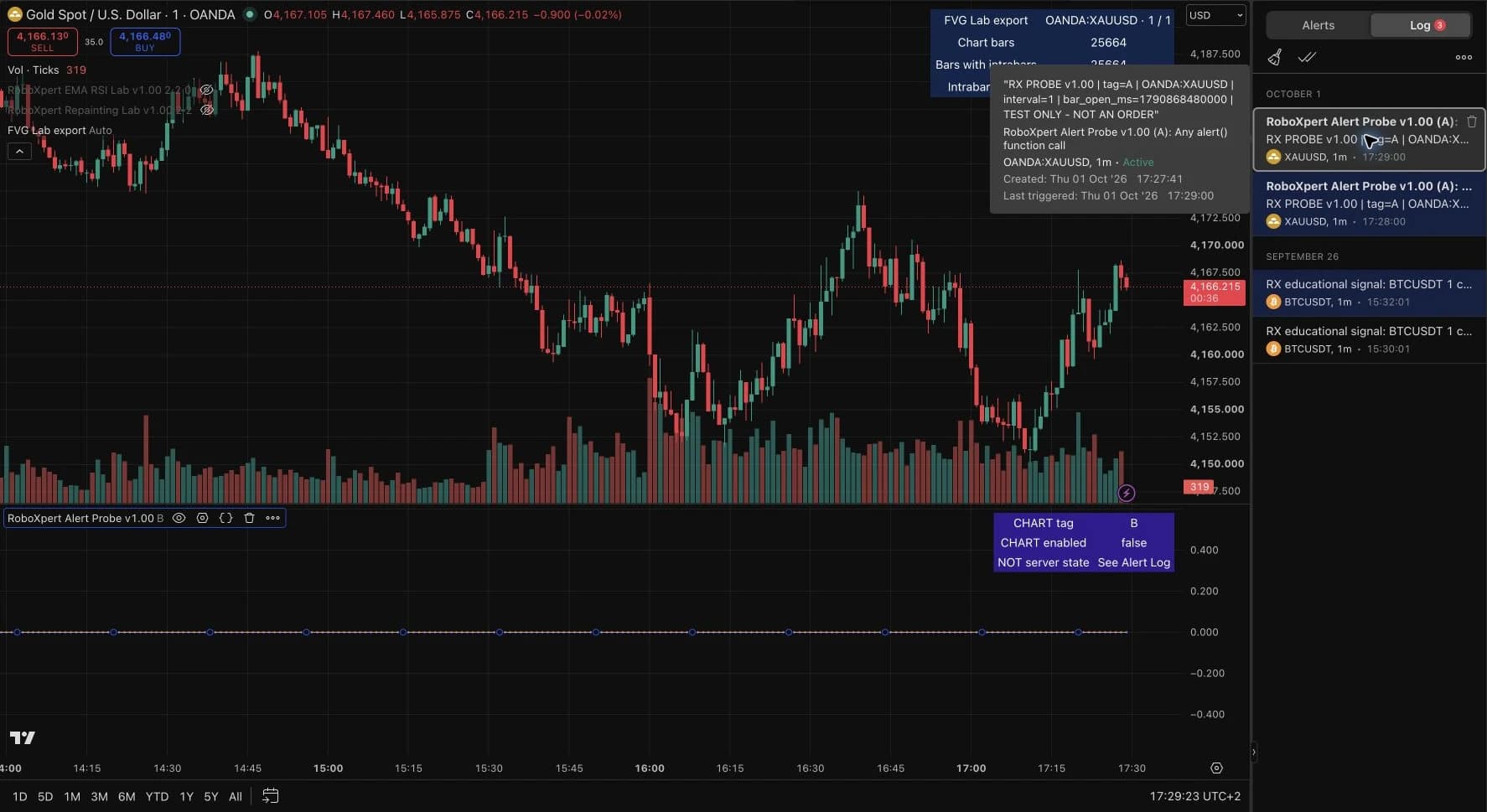
The 17:29 event contained bar_open_ms=1790868480000: the opening time of the 17:28 candle, not the notification’s delivery timestamp. Keeping these times separate prevents a one-bar misunderstanding.
The separate disabled B copy provided a short negative control. Recreating an enabled copy as C then produced a new C event. We stopped all three test alerts afterward. The absence of a B event applies to this observed window, not an indefinite reliability test.
The result supports a narrow conclusion: this existing server alert retained its original input profile. It does not prove that every missed alert has this cause, nor that a notification reached an external service.
Repeat the experiment safely
Reader resource · ZIP
Repeat the alert snapshot test
Original Pine v6 probe, test procedure, dated observations and a diagnostic record template. No orders or external delivery code.
Download the alert test kit- Download the test kit and add its Pine source to a separate chart layout. Use standard one-minute candles for an actively updating instrument.
- Set Enable test event = true and Test tag = A. Create the script alert using Any alert() function call. Keep notification destinations disabled for this log-only check.
- Wait for a new qualifying realtime bar and confirm tag A in the Log. A historical plot at 1 is insufficient evidence.
- Change only the chart inputs to false / B. Observe whether the existing alert continues with tag A.
- Stop the old test alert. To test a new profile, create a new alert from the intended inputs and compare its first qualifying event. Stop your test alerts when finished.
The diagnostic record in the kit keeps creation time, chart inputs, alert message and observation time separate. If you adapt the probe to your own rule, expose each filter as a value; otherwise “the signal looked right” remains difficult to verify. Our Pine indicator example demonstrates a named condition that shares its rule with the chart marker.
A disappearing marker is a different problem
An open candle changes as new prices arrive. A condition can be true intrabar, trigger an alert and then become false before the candle closes. Once Per Bar limits repetitions; it does not require the closing state. TradingView’s explanation.
If your rule is explicitly based on closed chart bars, align both the signal and alert with that timing. This changes when the rule is evaluated; it is not a universal repair for higher-timeframe data, backward-plotted pivots or future-data leakage. Use our repainting checks to distinguish those cases.
Conversely, a bar-close alert is not a promise of delivery at the exact nominal closing second. TradingView documents delays related to incoming trades and bar closure, particularly with sparse trading. Record the bar time and trigger time before diagnosing a timing fault. Bar-close timing.
The event exists, but the notification is missing
Inspect the destinations saved in that alert. A Log event can exist with every destination disabled—as our experiment demonstrates. Check app notifications, toast, email or webhook selection, and any notification schedule. For a phone, also check the receiving account and device permissions; for email, inspect the intended inbox and filtering. Test the particular channel you intend to rely on. TradingView’s notification setup.
TradingView webhook not working: nothing arrived, or no order followed
TradingView sends a webhook as an HTTP POST. A syntactically valid JSON message uses application/json; otherwise the content type is text/plain. That distinction can explain why a receiver rejects a message that looks readable in the Log.
TradingView documents ports 80 and 443, a three-second request timeout, no IPv6 support and a two-factor-authentication requirement for webhook alerts. Inspect the Webhook status field as well as the receiver’s records. Keep passwords and other sensitive credentials out of the message body. Official webhook requirements.
Scroll horizontally if needed
| Observed result | Next useful check |
|---|---|
| 3xx response | Whether the destination redirects instead of accepting the POST directly |
| 4xx response | Receiver authentication, path, request format and rejection details |
| 5xx response | Receiver/server error logs for that event |
| Timeout | Whether the receiver completed its response within the documented window |
| Successful HTTP response, no downstream action | Application processing and connector/terminal logs |
The first four checks follow TradingView’s webhook-error reference. The last is a separate systems check: an HTTP response alone does not identify a completed broker order. Preserve an event identifier across each stage rather than comparing unrelated timestamps by eye.
What to record before asking for help
Save the script version, symbol including the data provider, interval, relevant inputs, alert creation time, condition selection, frequency, displayed status and timezone. Add the expected event’s bar time, actual Log entry and destination response when applicable. Remove credentials before sharing a record.
The shortest useful report is specific: “Alert A was created at this time from these inputs; this bar met the recorded rule; the Log did—or did not—contain this event.” That gives a developer or support team something they can reproduce.
Common questions
Does TradingView need to remain open?
Created alerts run on TradingView’s servers; leaving the browser open is not what makes the saved server condition execute. A notification channel or a separate execution connector can have its own requirements. TradingView’s alert execution model.
Why did changing my indicator not fix the alert?
The existing alert may still use its earlier saved inputs. Our A/B experiment reproduces that mismatch. Compare the creation context, stop the obsolete alert and create a replacement from the intended configuration; then check an actual new event.
Can Bar Replay prove that the alert was delivered?
No. A replayed marker is evidence about a historical calculation, not a recorded realtime delivery. Follow the replay limitations and realtime testing procedure and retain the actual Alert Log and destination records.

Sources & further reading
- TradingView: Pine Script alerts and saved snapshots
- TradingView: alert troubleshooting FAQ
- TradingView: configure webhook alerts
- TradingView: webhook error meanings
- TradingView: alerts that trigger too frequently
- TradingView: Once Per Bar behavior
- TradingView: delays in Once Per Bar Close alerts
- TradingView: setting up alert notifications
Your next question