Learn
MT5 MCP Server: Connect Claude Code to MetaTrader 5
At a glance
The MT5 MCP server is a Model Context Protocol (MCP) server built into MetaTrader 5 since build 6060 of 23 July 2026. It lets an AI agent such as Claude Code or Codex read account data, write and compile MQL5 files and run the Strategy Tester. We switched it on in build 6230 on 12 October 2026. The terminal listed 67 tools, six of them for orders, and MetaEditor listed 23. An Expert Advisor was written, compiled and backtested through the two servers in about a minute. On the official Mac package the server did not start until MetaTrader ran in Windows 10 mode.
On this page

The MT5 MCP server is a small web server inside MetaTrader 5. Once it is switched on, an AI agent on the same computer can call the platform’s functions as tools: read the account, fetch prices, create and compile an MQL5 file, start a backtest and read the report. MetaQuotes added it with build 6060 on 23 July 2026 and names Claude Code and OpenAI Codex as clients.
We switched it on in build 6230 on 12 October 2026, on a demo account, and logged every call. This guide covers the setup, what the server offers, what it refuses, one complete run from source file to backtest report, and the errors we ran into. Everything marked as tested comes from that session. The rest is quoted from MetaQuotes’ documentation and marked as such.
What is the MT5 MCP server?
MCP stands for Model Context Protocol, an open standard for connecting AI applications to tools and data. An MCP server publishes a list of tools with names, descriptions and parameters. An MCP client, the agent, picks a tool and sends a call. The server runs it and returns the result as text.
MetaQuotes’ configuration page describes three servers. Two are local and one is a web service:
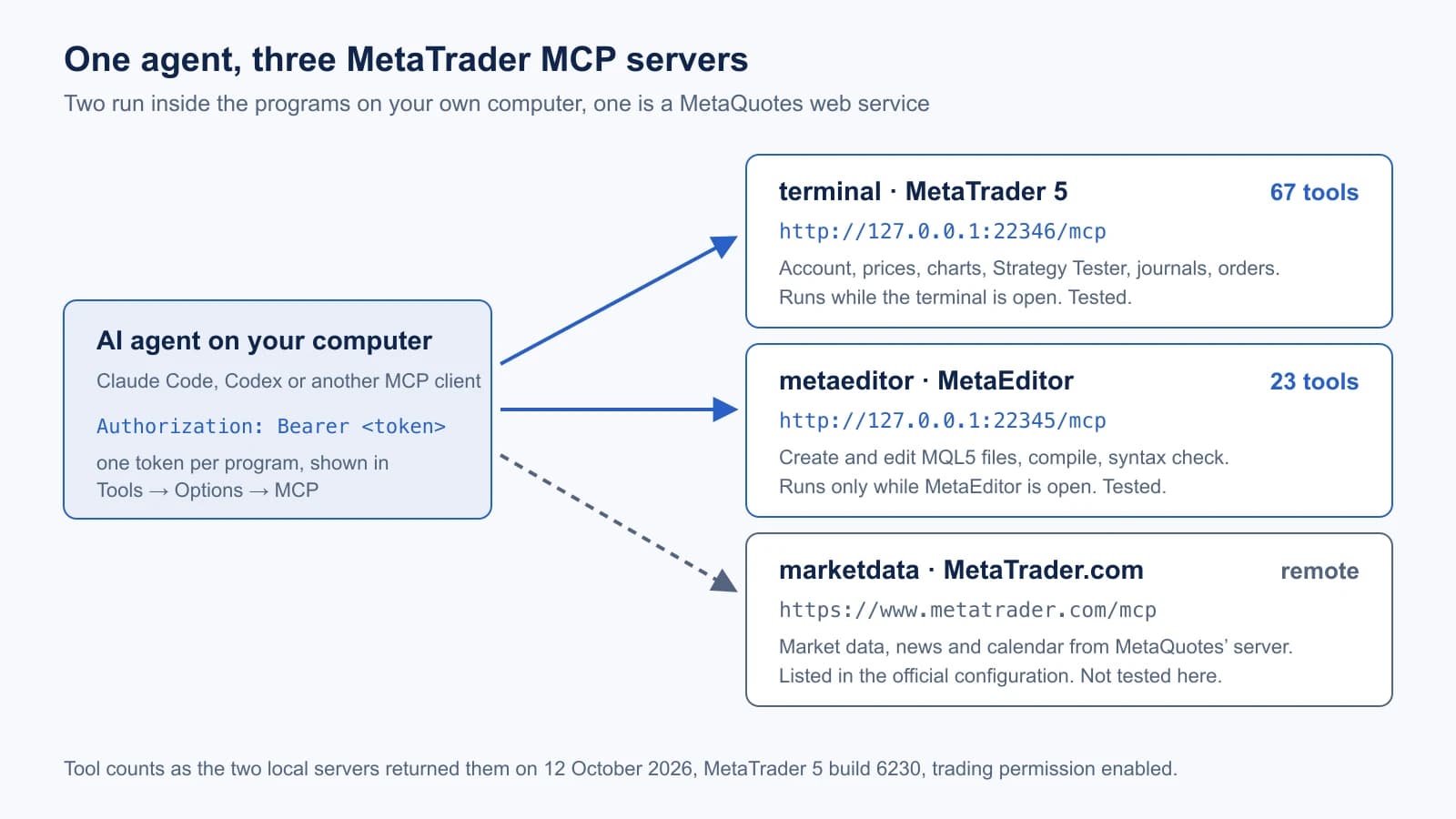
The table sets the documented purpose of each server beside what it answered in our session:
Scroll horizontally if needed
| Server | Address | Purpose | In our test |
|---|---|---|---|
| terminal | http://127.0.0.1:22346/mcp | Account, prices, charts, Strategy Tester, journals, orders | Answered as “MetaTrader 5 MCP 1.0” with 67 tools |
| metaeditor | http://127.0.0.1:22345/mcp | MQL5 files, compile, syntax check | Answered as “MetaEditor 5 MCP 1.0” with 23 tools |
| marketdata | https://www.metatrader.com/mcp | Market data, news, economic calendar | Not tested |
Both local servers listen on 127.0.0.1 only, speak HTTP and expect a bearer token. Without a token ours answered 401 Unauthorized. They reported protocol version 2025-06-18.
This is different from the AI Assistant inside MetaTrader. The assistant is a chat window in the platform that uses these tools with a model you choose there. The MCP server opens the same tools to an agent outside the platform. It is also different from third-party MCP servers on GitHub, which drive MetaTrader through its Python interface and are not covered here.
What you need before you start
Six things have to be in place. The table lists them with the detail that mattered in our setup:
Scroll horizontally if needed
| Requirement | Detail |
|---|---|
| MetaTrader 5 build 6060 or later | Check under Help → About. We used build 6230. |
| An MQL5.community login in the terminal | MetaQuotes’ release notes require it for the built-in assistant. Ours was signed in; we did not test the server without it. |
| A demo account | The six order tools act on the logged-in account. |
| MetaEditor open | Its server exists only while MetaEditor runs. Without it the agent cannot compile. |
| An MCP client | Claude Code, Codex or any client that can send HTTP requests with a bearer header. |
| On a Mac: one extra setting | See the Mac section. |
Set up the MT5 MCP server in five steps
The menu names below are from MetaQuotes’ configuration page. We changed these settings in the same dialogs and then read the result back through the server.
1. Set the permissions first
Open Tools → Options → AI Assistant. Three switches decide what any agent may do:
- Trading: allowed, allowed only with your confirmation, or prohibited. Start with prohibited.
- Web: full access, GET requests only, or none.
- Dangerous shell operations: leave this off. It allows shell commands outside the platform’s own folders.
According to MetaQuotes, these settings are shared between the terminal and MetaEditor.
2. Switch the server on
Open Tools → Options → MCP and tick Enable internal server. The dialog shows the address and an API Key. Click OK. Do the same in MetaEditor: it has its own server and its own address.
The terminal confirms the start with one line in the Journal tab. If this line is missing, the server is not running, whatever the checkbox says:
MCP started on 127.0.0.1:22346
3. Copy the configuration and the token
The Copy button in the MCP dialog puts a ready configuration block on the clipboard, with <token> as a placeholder. Replace the placeholder with the API key from the same dialog.
Each program has its own token. In our test the terminal’s token was rejected by MetaEditor and the other way round, both with 401. Take the terminal’s key from the terminal’s dialog and MetaEditor’s key from MetaEditor’s dialog.
4. Give the configuration to your agent
For Claude Code, MetaQuotes’ page says to save the block as .mcp.json in the project folder:
{
  "mcpServers": {
    "metaeditor": {
      "type": "http",
      "url": "http://127.0.0.1:22345/mcp",
      "headers": { "Authorization": "Bearer <token>" }
    },
    "terminal": {
      "type": "http",
      "url": "http://127.0.0.1:22346/mcp",
      "headers": { "Authorization": "Bearer <token>" }
    }
  }
}
For Codex the same page gives a config.toml in a .codex folder of the project, with one [mcp_servers.terminal] block per server and the token in http_headers. We did not test Codex.
The file now holds a key to your trading terminal. Keep it out of shared folders and out of Git.
5. Approve the servers and ask for the tool list
Claude Code does not trust a project’s .mcp.json on sight. With version 2.1.282, claude mcp list showed both servers like this until they are approved in an interactive session:
metaeditor: http://127.0.0.1:22345/mcp (HTTP) - ⏸ Pending approval (run `claude` to approve)
terminal: http://127.0.0.1:22346/mcp (HTTP) - ⏸ Pending approval (run `claude` to approve)
After that, MetaQuotes suggests this first prompt: “Using MetaTrader MCP servers, provide a table of all the tools you can access.” The server itself adds an instruction for every client: call get_workspace_info first and stay inside the folders it returns.
MT5 MCP on a Mac: the server needs Windows 10 mode
MetaTrader 5 for macOS is the Windows program inside a bundled Wine. On our Mac (official package, Wine 10.0, build 6230) ticking Enable internal server had no effect:
- the Journal showed no “MCP started” line,
- nothing listened on port 22346,
- a Wine network trace of the first half minute after start showed no attempt to open a listening socket.
The cause was the Windows version the programs run under. In our installation both terminal64.exe and metaeditor64.exe were registered in Wine with the version win7, and the terminal logged “Windows Server 2008 R2 Service Pack 1” at start. After we changed that one value to win10 and restarted, the Journal showed MCP started on 127.0.0.1:22346 and the server answered. The terminal then reported “Windows 10 build 19043 on Wine 10.0”.
These are the two commands we ran in the macOS Terminal with MetaTrader closed:
export WINEPREFIX="$HOME/Library/Application Support/net.metaquotes.wine.metatrader5"
WINE="/Applications/MetaTrader 5.app/Contents/SharedSupport/wine/bin/wine64"
"$WINE" reg add 'HKCU\Software\Wine\AppDefaults\terminal64.exe' /v Version /d win10 /f
"$WINE" reg add 'HKCU\Software\Wine\AppDefaults\metaeditor64.exe' /v Version /d win10 /f
To undo the change, run the same lines with win7.
Which tools does the MT5 MCP server expose?
We asked both servers for their tool lists with the protocol’s tools/list request. The terminal returned 67 tools:
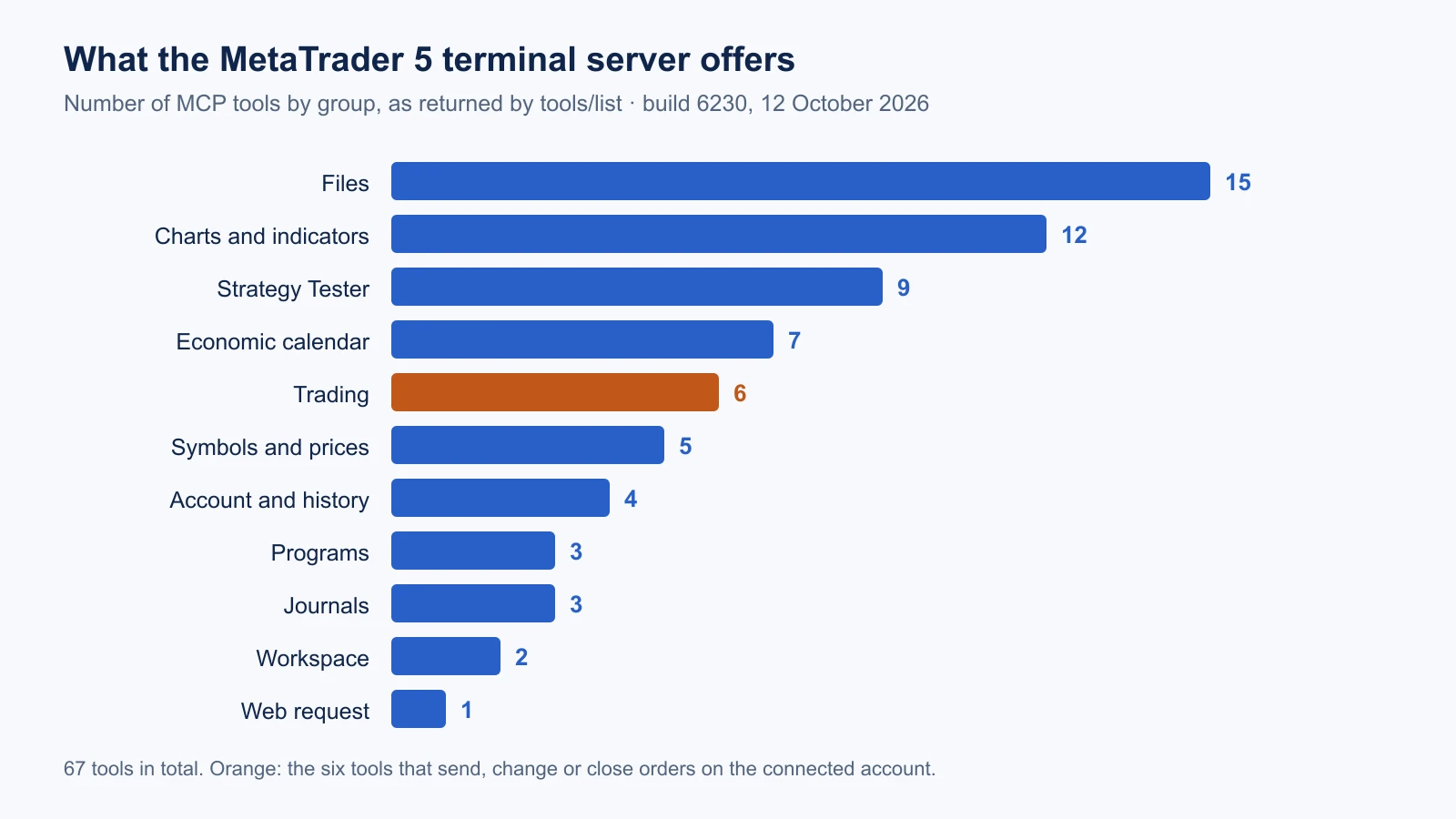
The table gives the same groups with example tools and what each group is able to change on your computer or account:
Scroll horizontally if needed
| Group | Tools | Examples | What it can change |
|---|---|---|---|
| Files | 15 | read_file, write_file, search_text, delete_file | Files in the MQL5 and Common folders |
| Charts and indicators | 12 | chart_open, chart_add_expert, chart_get_indicator_state | Your open charts, including attaching an EA |
| Strategy Tester | 9 | tester_prepare_config, tester_run_backtest, tester_get_report | Tester settings and files |
| Economic calendar | 7 | economic_calendar_list_values | Nothing |
| Trading | 6 | trade_send_market_order, trade_modify_sl_tp, trade_close_single_position | Orders and positions on the account |
| Symbols and prices | 5 | get_chart_history, get_marketwatch_symbols | The Market Watch list |
| Account and history | 4 | get_trading_account_info, get_trading_open_positions | Nothing |
| Programs | 3 | list_available_mql5_programs | Nothing |
| Journals | 3 | get_terminal_journal, get_tester_journal | Nothing |
| Workspace | 2 | get_workspace_info, get_time_information | Nothing |
| Web request | 1 | send_web_request | Sends data to a web address |
MetaEditor returned 23 tools: 14 file tools, the same two workspace tools and send_web_request, plus six of its own: compile_file, build_project, syntax_check, format_source_code, open_file_in_editor and list_open_documents. The compiler is only on this server. The terminal can run a compiled EA in the tester but cannot build one.
Our lists do not match MetaQuotes’ capabilities page line by line. The page names shell, tree, write, edit and read_image, which neither server offered us. It names list_available_expert_advisors where our terminal had list_available_mql5_programs. Our terminal also had tools the page does not list, among them delete_folder and two more calendar tools. MetaQuotes says the list keeps growing and depends on your settings, so ask your own server.
Can the agent trade your account?
Yes, if you allow it. Three observations from our session:
The permission is reported separately from Algo Trading. get_trading_account_info returned two flags for the terminal: experts_trade_allowed: false, because the Algo Trading button was off, and mcp_trade_allowed: true. With that setting the six order tools were in the list. We did not send an order, so we cannot say what happens when one flag allows and the other does not.
The order tools carry a rule in their description. trade_send_market_order is described as “Use only after an explicit user instruction specifying the symbol, side and volume.” That is an instruction to the model. The switch in Tools → Options → AI Assistant is the control you can rely on. MetaQuotes documents three positions: allowed, confirmation required, prohibited.
File access stayed inside the platform’s folders. The server reported the MQL5, Tester and Logs folders and the shared Common folder as readable, and MQL5 and Common as writable. We asked both servers for a file in the terminal’s own config folder, where accounts and settings are stored, and for a Windows system file. Each request was refused:
Tool 'read_file' access to the specified file is prohibited, use a path under the allowed folders only.
Two routes around the trading switch deserve a thought, and we tested neither. chart_add_expert attaches an Expert Advisor to a chart, and an attached EA trades by its own code when Algo Trading is on. send_web_request can send anything the agent has read to a web address. If your client lets you allow tools one by one, leave out the order tools, the chart tools and the web request until you need them. Our script refused them by name.
Test run: write, compile and backtest an EA through MCP
The task was the kind of job the feature is advertised for: write a small Expert Advisor, compile it and test it. The EA is a plain moving-average cross on closed bars with a fixed stop and target. It exists to exercise the tools. The agent wrote the source code. The finished EA is an ordinary MQL5 program and does not ask an AI for trading decisions.
The calls came from a Claude Code session, version 2.1.282. The session sent each call as a JSON-RPC request through a short Python client, which is in the download. The client refuses order, chart, delete and web tools by name and writes every call to a log. We did not run the workflow through Claude Code’s own MCP registration.
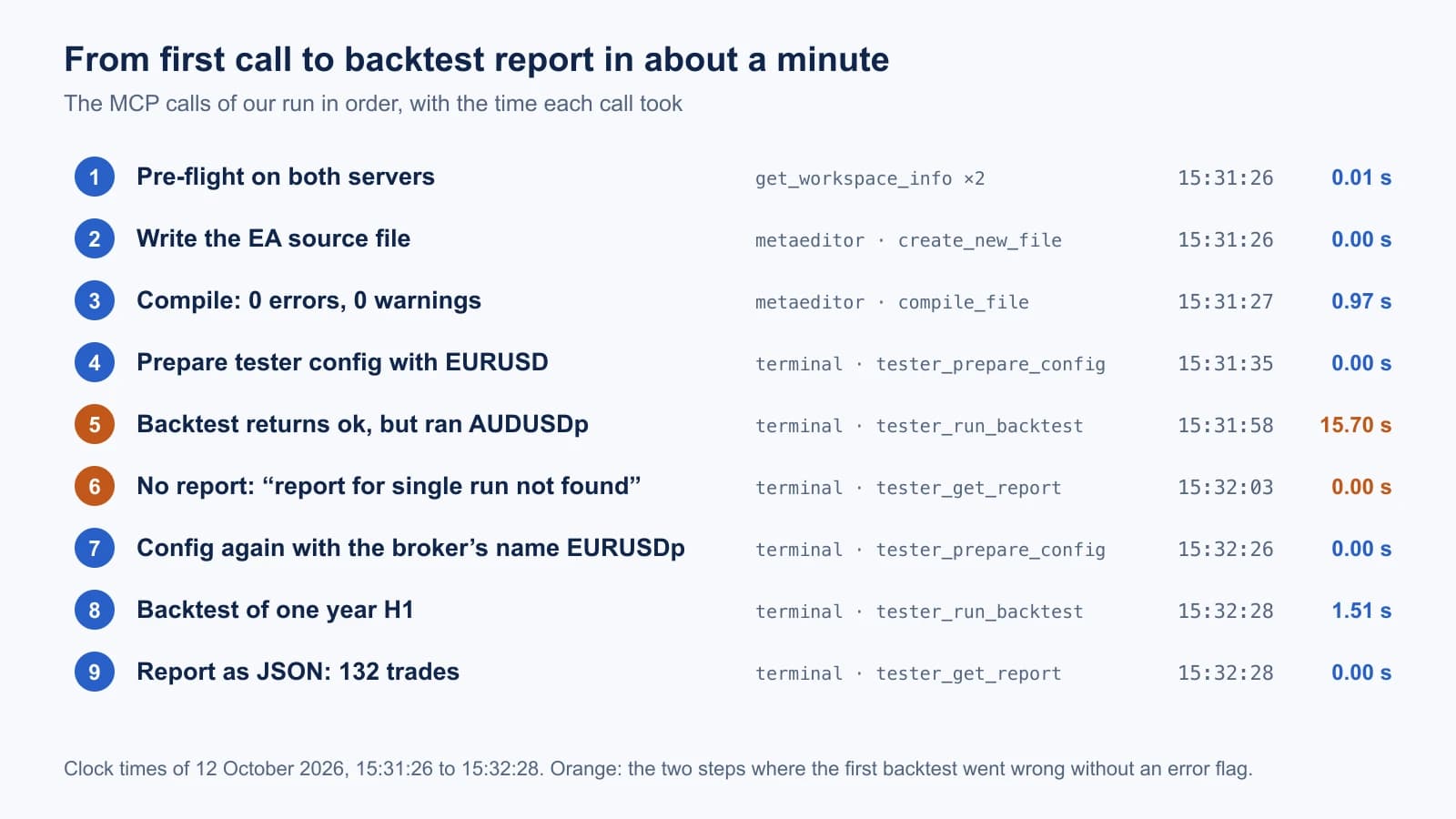
The table shows which server did which part of the job and what came back:
Scroll horizontally if needed
| Step | Server and tool | Result |
|---|---|---|
| Pre-flight | both · get_workspace_info | Allowed folders, compiler build 6230, permissions |
| Write the source | metaeditor · create_new_file | 4,325 bytes written to MQL5\Experts\RoboXpertMcpLab |
| Compile | metaeditor · compile_file | “Compilation succeeded: 0 errors, 0 warnings”, 0.97 s |
| Prepare the test | terminal · tester_prepare_config | An .ini file in MQL5\Profiles\Tester |
| Run the test | terminal · tester_run_backtest | A run ID and "status": "stopped" |
| Read the result | terminal · tester_get_report | The report as JSON |
From the first call to the report 62 seconds passed, including one failed backtest and the pauses between calls.
The first backtest tested the wrong symbol
We asked for EURUSD. Our demo server calls the pair EURUSDp. The tester did not stop: it loaded the configuration, downloaded history for AUDUSDp and started. Then the tester agent failed with “tester agent authorization error”. The tool still answered:
{ "ok": true, "run_id": "7695773523700488662", "status": "stopped", "timed_out": false }
Only the next call showed the problem: tester_get_report returned “tester report for single run not found”, and tester_get_configuration showed "symbol": "AUDUSDp". An agent that reads ok: true and moves on would report a test that never ran. After we took the symbol name from get_marketwatch_symbols, the second run finished in 1.51 seconds.
The result
The table holds the settings of the second run and the figures of its report, so the numbers can be read with their conditions:
Scroll horizontally if needed
| Setting or figure | Value |
|---|---|
| Test | Strategy Tester backtest, MetaTrader 5 build 6230, 12 October 2026 |
| Symbol, period | EURUSDp, H1, 1 January to 31 December 2025 |
| Tick model | 1 minute OHLC. The report states “History Quality 100%”. |
| Account settings | 10,000 USD deposit, leverage 1:100, server BlackBullMarkets-Demo |
| Inputs | SMA 20 and 50, 0.10 lot, stop 300 points, target 600 points, not optimised |
| Trades | 132, of which 51 closed with a profit and 81 with a loss |
| Costs in the report | 79.20 USD commission and 27.04 USD swap |
| Net profit | 426.66 USD |
| Profit factor | 1.19 |
| Maximal equity drawdown | 384.52 USD (3.62%) |
This is one backtest of an untuned textbook rule over one year on one symbol. It shows that the tools return a complete report. It says nothing about whether the rule is worth trading. Our guide to reading a Strategy Tester report explains each figure, and backtest vs live trading explains what a test like this leaves out.
Two details about the report tool. The JSON answer holds the result figures but not the settings and not the history quality. Asking for file_format: "xml" saved a file that is an Excel workbook inside, with the settings block, the history quality and the full order and deal lists. The history quality and the costs in the table above come from that file.
Errors we hit and what they meant
Every row in this table is a message we received on 12 October 2026, with the cause we found and the step that fixed it:
Scroll horizontally if needed
| What you see | Cause in our test | What to do |
|---|---|---|
| Connection refused on port 22346, box is ticked | On the Mac: Windows 7 mode. No “MCP started” line in the Journal. | Set Windows 10 mode as described above, restart. |
| Connection refused on port 22345 | MetaEditor was closed. | Open MetaEditor and enable its server. |
401 Unauthorized | Token of the other program, or the word Bearer missing in the header. | One token per program, written as Bearer <token>. |
| Claude Code shows “Pending approval” | Project servers need approval. | Start claude in the folder and approve them. |
ok: true, but “report for single run not found” | The run failed. In our case wrong symbol, then an agent authorization error. | Call tester_get_configuration and read the tester journal. Run again. |
| “symbol not found” | The broker uses a suffix. | Take the exact name from get_marketwatch_symbols. |
| “invalid datetime range” from a journal tool | Both times are required. | Send datetime_from and datetime_to in the computer’s local time. |
| “change_id must be specified” | economic_calendar_list_values_last needs a starting point. | Use economic_calendar_list_values with a time range first. |
What we did not test
- Orders. We sent none, on purpose. The three positions of the trading permission are from MetaQuotes’ configuration page; what the server does in the confirmation mode and when trading is prohibited is not something we observed.
- The marketdata server at metatrader.com and all tools of the built-in assistant that need it.
- Codex and other clients. The configuration is quoted from MetaQuotes.
- Windows. All results are from the macOS package under Wine. The tool lists and answers should be the same on Windows, but we have not checked.
- An unattended agent. Every call in this run was sent from a supervised session. We did not let an agent work alone on the terminal.
- Optimisation with
tester_run_optimization, attaching programs to charts and web requests.
MT5 MCP in short
- The server is part of MetaTrader 5 from build 6060. It is off until you tick Enable internal server under Tools → Options → MCP, in the terminal and in MetaEditor.
- Look for “MCP started on 127.0.0.1:22346” in the Journal. On a Mac that line only appeared in Windows 10 mode.
- The terminal offers account, price, chart, tester and order tools. MetaEditor offers the compiler. An agent needs both to build and test an EA.
- Set Trading to prohibited before the first connection, and use a demo account.
- Do not trust
ok: truefrom the tester. Read the configuration and the report of every run.
Download the MCP lab files (ZIP). The two Python scripts, both tool lists as the servers returned them, the call log, the EA source and the backtest report as JSON. No token, no account data.
The ZIP holds the probe and call scripts, the two tool lists with every description and parameter, the call log of the run, the EA source and the backtest report as JSON. It contains no token, no account number and no compiled program.

Sources & further reading
Your next question